
Photos that answer the mouse.
Purplish gives the Image block seven hover styles, from a 3D tilt to a round loupe, and the Cover block four of its own. Pick one in the block sidebar, on any page or post.
Free and open source. Updated for Purplish 1.3.
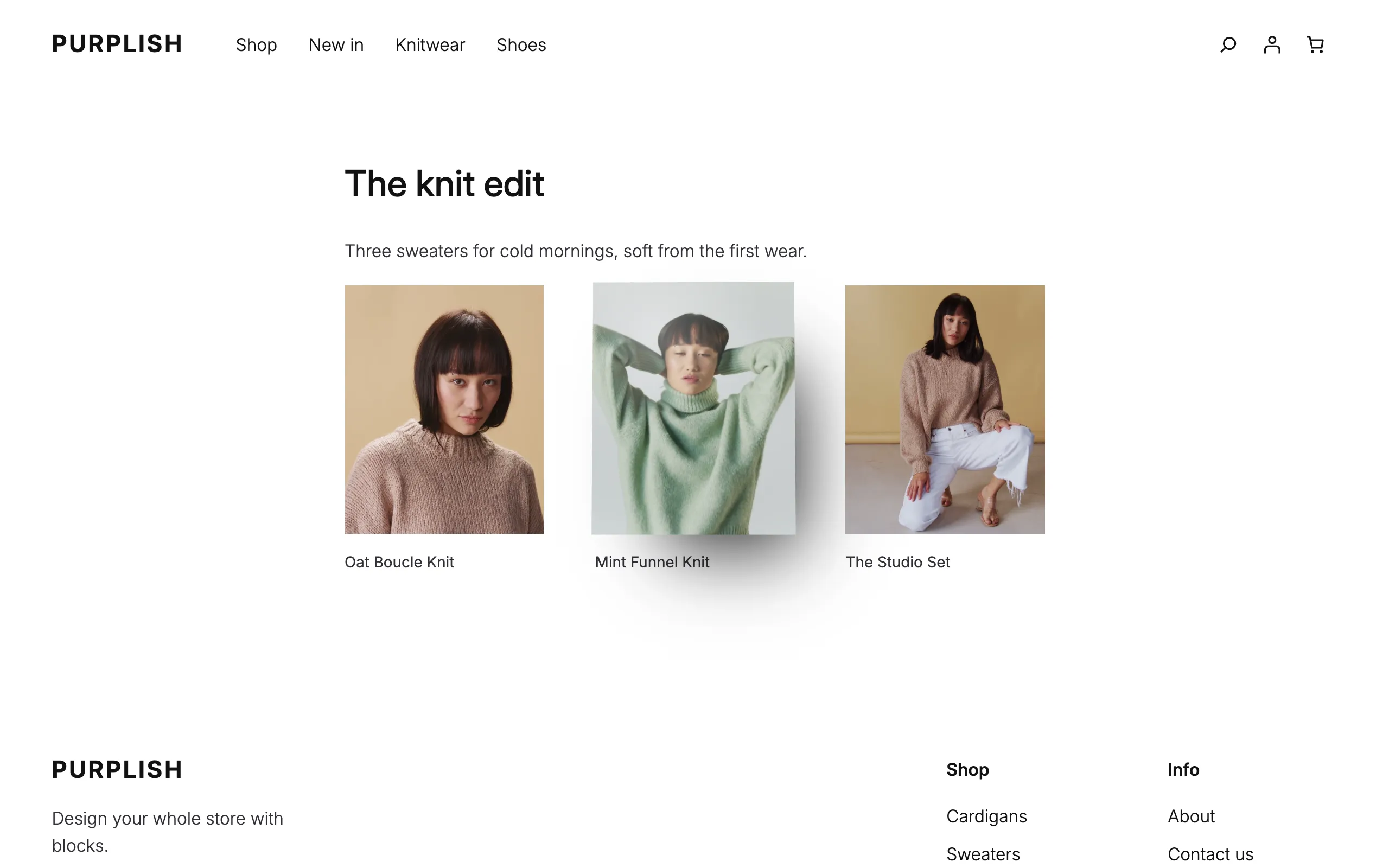
One menu in the Image block's sidebar.
Select an Image block, open its Settings tab, and the Purplish panel has one menu: Hover style.
- Select the Image block
Any Image block, on a page, a post or a template.
- Open the Purplish panel
It's on the Settings tab. Pick a Hover style.
- Save the page
Each image keeps its own style, so one page can mix them.
Product photos get the same seven styles on the Product Gallery block. They're on the Product gallery page.

The gallery's hover styles, on any image.
It's the same seven the Product Gallery has. Pick one on the right and move over the photo.
- 3D tilt
- Leans the photo toward the mouse.
- Zoom
- Magnifies the spot the mouse points at.
- Lift
- Raises the photo on a soft shadow.
- Parallax
- Lets the photo drift with the mouse.
- Glare
- Runs a light across the photo.
- Loupe
- Shows a round magnifier.
- Slow zoom
- Pushes in on the photo.
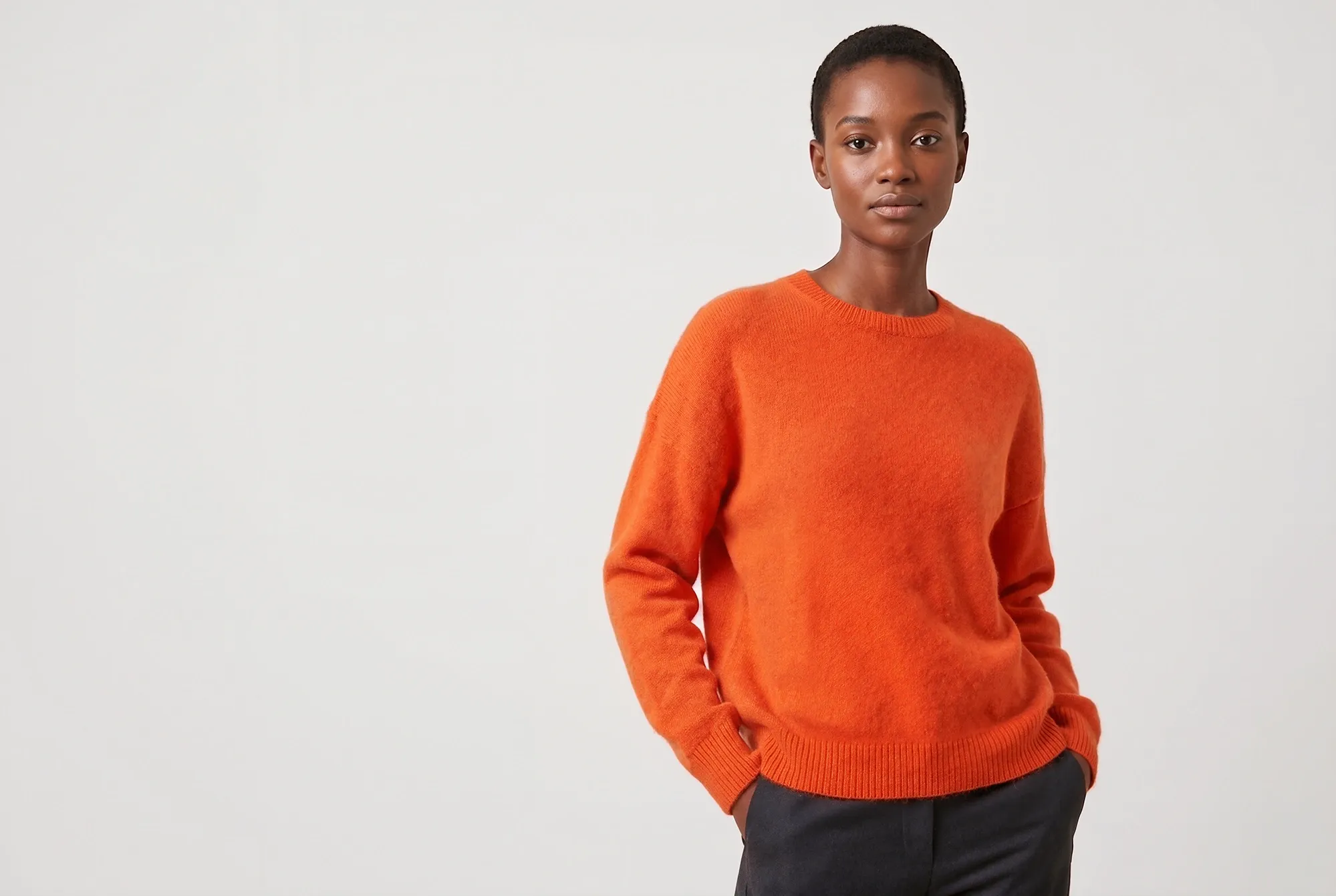
Move over the photoTry this with a mouse
A real Image block running Purplish's own stylesheet and script.
Covers that lean in when the mouse arrives.
The Cover block gets four hover looks of its own, set in the same Purplish panel as its scroll effect. Pick a look and move over the cover.
- Push in
- Moves the background in slowly.
- Tilt
- Turns the whole cover toward the mouse, with a sheen.
- Lift
- Raises the cover on a soft shadow.
- Glare
- Runs a light after the mouse.
On WooCommerce 11.3 and later, Featured Category and Featured Product get the same four looks. The scroll effects for covers are on the Scroll effects page.
Knitwear
Shop the new edit
Knitwear
Shop the new edit
Knitwear
Shop the new edit
Knitwear
Shop the new edit
Move over the coverTry this with a mouse
A real Cover block running Purplish's own stylesheet and script.
Good to know before you pick.
How the hover styles behave for shoppers on other devices and themes.
- Touch screens
Phones and tablets have no mouse, so photos and covers stay still.
- Reduced motion
Visitors who ask their device for reduced motion see still photos and covers.
- Captions and lightbox stay put
The photo grows inside its own frame, so the caption and the lightbox button stay where they are.
- Block themes
Hover styles and cover looks need a block theme. Classic themes get the page colors and three gallery options instead.
More of Purplish
- Product galleryHover, full-screen and slide styles for the Product Gallery, and round thumbnails.
- Button effectsGlow, glass, a spectrum ring and googly eyes for any Button block and the add to cart button.
- Scroll effectsHeadings, sections, columns and covers that come in once as the page scrolls.
- Product cardsTwenty-three card effects and add to cart on the photo for the shop page.
- Product page colorsThe button, the selected option and the sale badge follow the color the shopper picks.
Image questions.
What store owners ask about the hover styles. The docs cover every option.
How do I add a hover effect to an image in WordPress?
On a block theme, select the Image block, open the Settings tab in the sidebar and pick a Hover style in the Purplish panel. Save the page, and the photo reacts when a mouse moves over it.
Does it work with captions and the lightbox?
Yes. The photo grows inside its own frame, so the caption stays below it and the lightbox button stays in its corner.
Can product photos get the same styles?
Yes. The Product Gallery block has the same seven hover styles, plus full-screen and slide styles. They're on the Product gallery page.
Can a Cover block have a hover effect?
Yes. Select the Cover block and pick Push in, Tilt, Lift or Glare under Hover in the Purplish panel. On WooCommerce 11.3 and later, the Featured Category and Featured Product blocks have the same setting.
Let your photos react to the mouse.
Pick a hover style for any Image or Cover block, on any page or post.
Block themes. Free and open source.