
Line up your new collection and let shoppers walk it, look by look.
Runway is a Purplish block for WooCommerce. Your product photos stand in a line that fades into the distance, and the product cards beside it follow the look at the front.
Free and open source. Updated for Purplish 1.2.
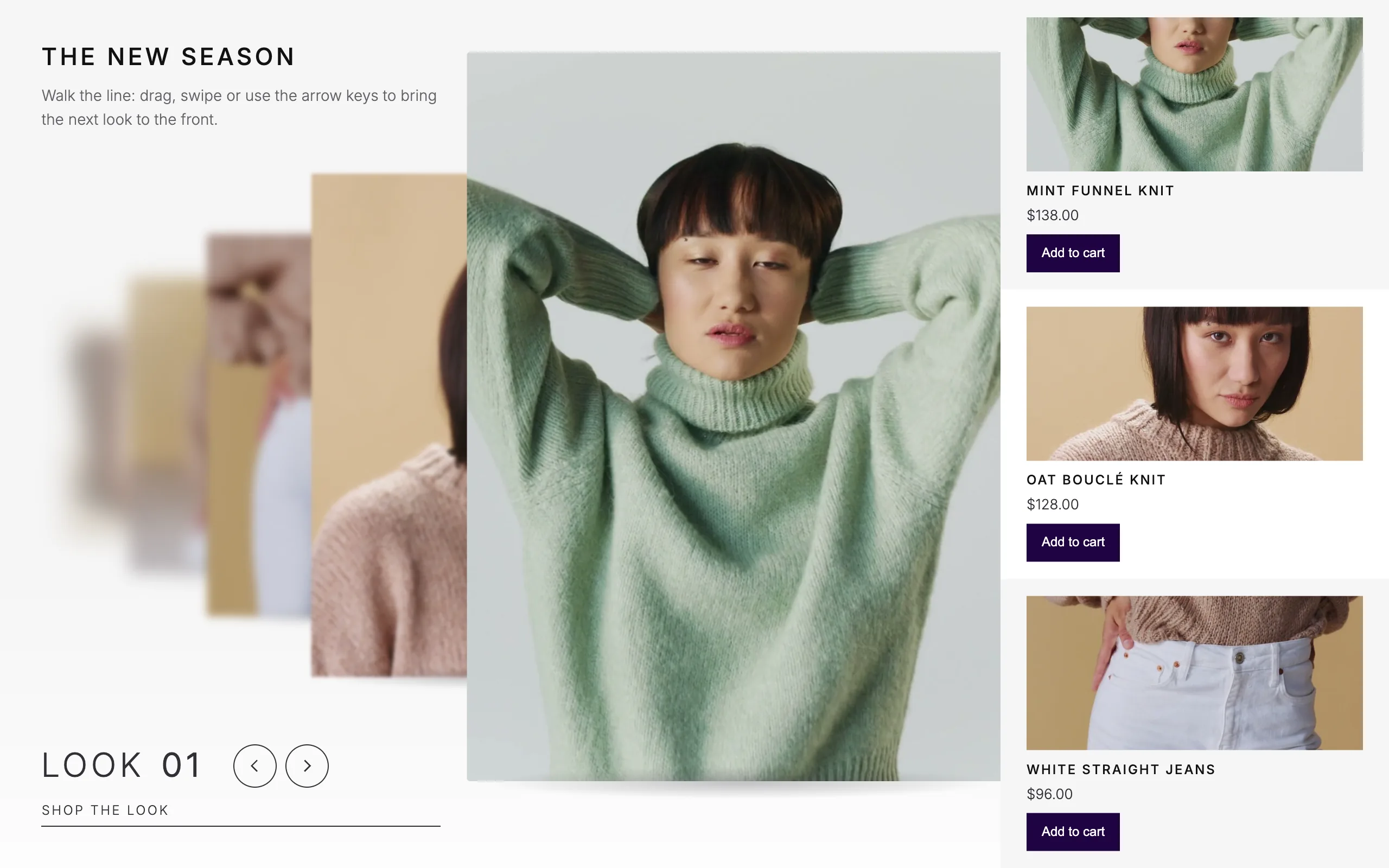
Add it like any other block.
Runway sits in the Purplish group of the block inserter. Inside it are a heading, a short line and one Product Collection, and the products in that collection become the looks.
- Add the block or the pattern
Insert Runway on any page, or the "Runway lookbook" pattern for a heading, a short line and six new arrivals.
- Pick the products
Choose them in the Product Collection. The looks stand in the same order as its cards.
- Set the four options
Pick where the looks come from and the photo shape, then turn the look number and fly to cart on or off.
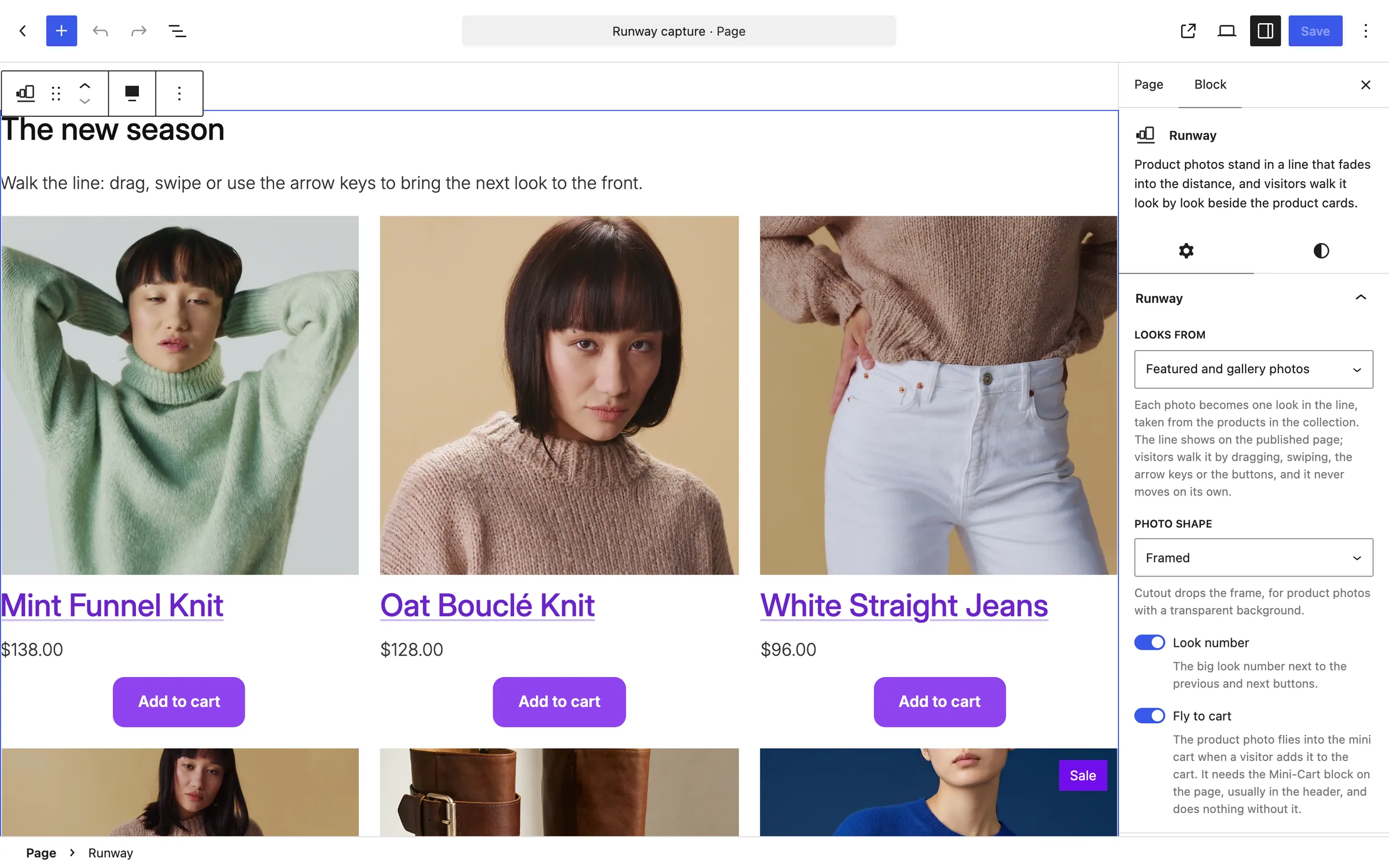
Shoppers walk the line one look at a time.
Each look steps up to the front when a shopper drags, swipes or presses an arrow key, and the cards beside the line scroll to that product. Nothing moves until a shopper does.
Looks from
Where the looks come from.
With Featured and gallery photos, each product's featured photo comes first, then its gallery photos, each as its own look. Featured photo only gives one look per product. Featured and gallery photos is the default.
The walk
- Drag, swipe or press an arrow. A mouse drag, a swipe, a sideways trackpad swipe, the arrow keys and the two buttons all move the line. A normal scroll wheel still scrolls the page.
- Cards that follow. The column of product cards scrolls to the product at the front, and its add to cart button gives a short shimmer.
- Shop the look. The link under the look number always goes to the product at the front.
Framed or cutout, with or without the look number.
Two options change how the line looks. Framed suits any product photo, and Cutout suits photos with the background removed.
Try the two options
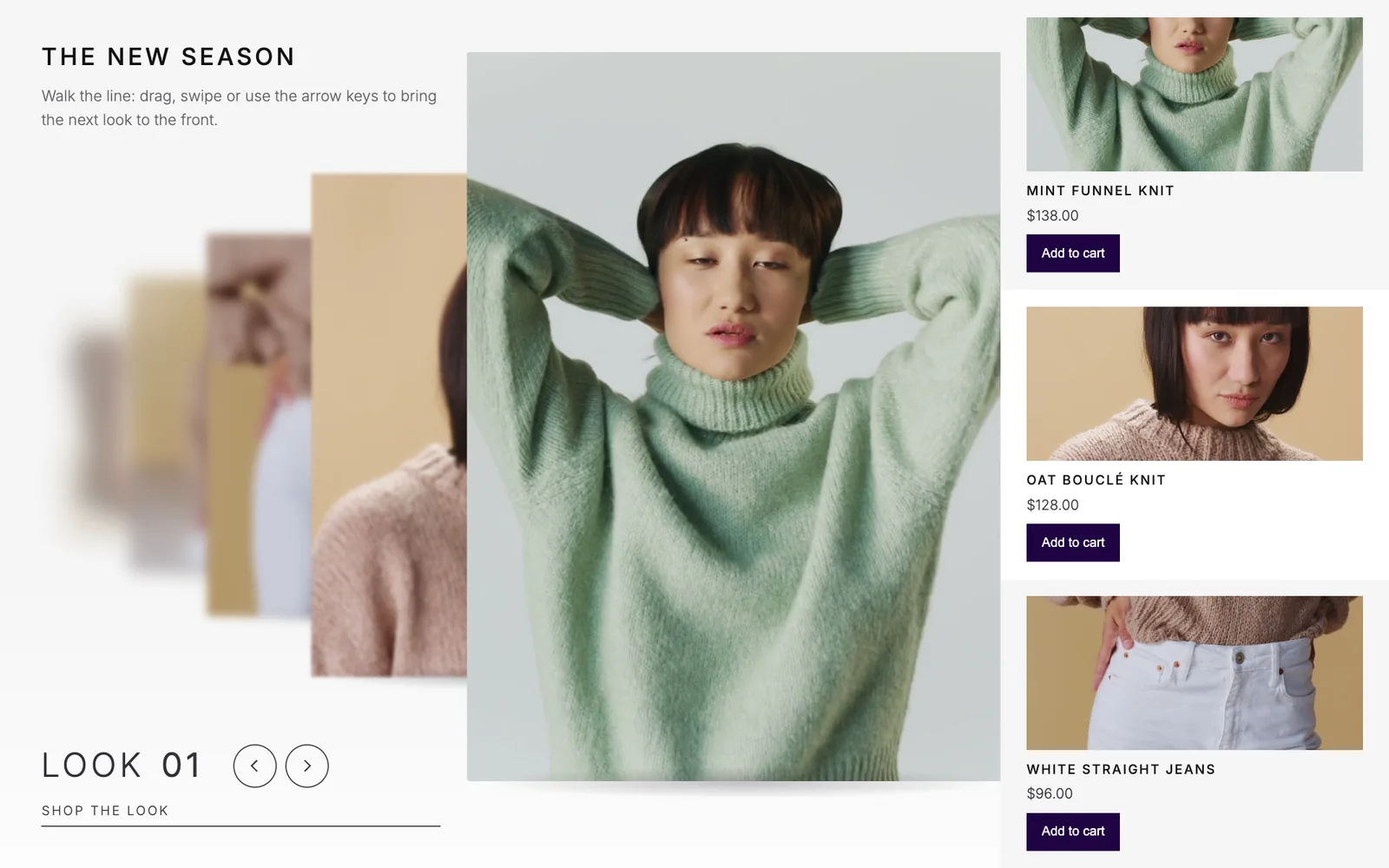
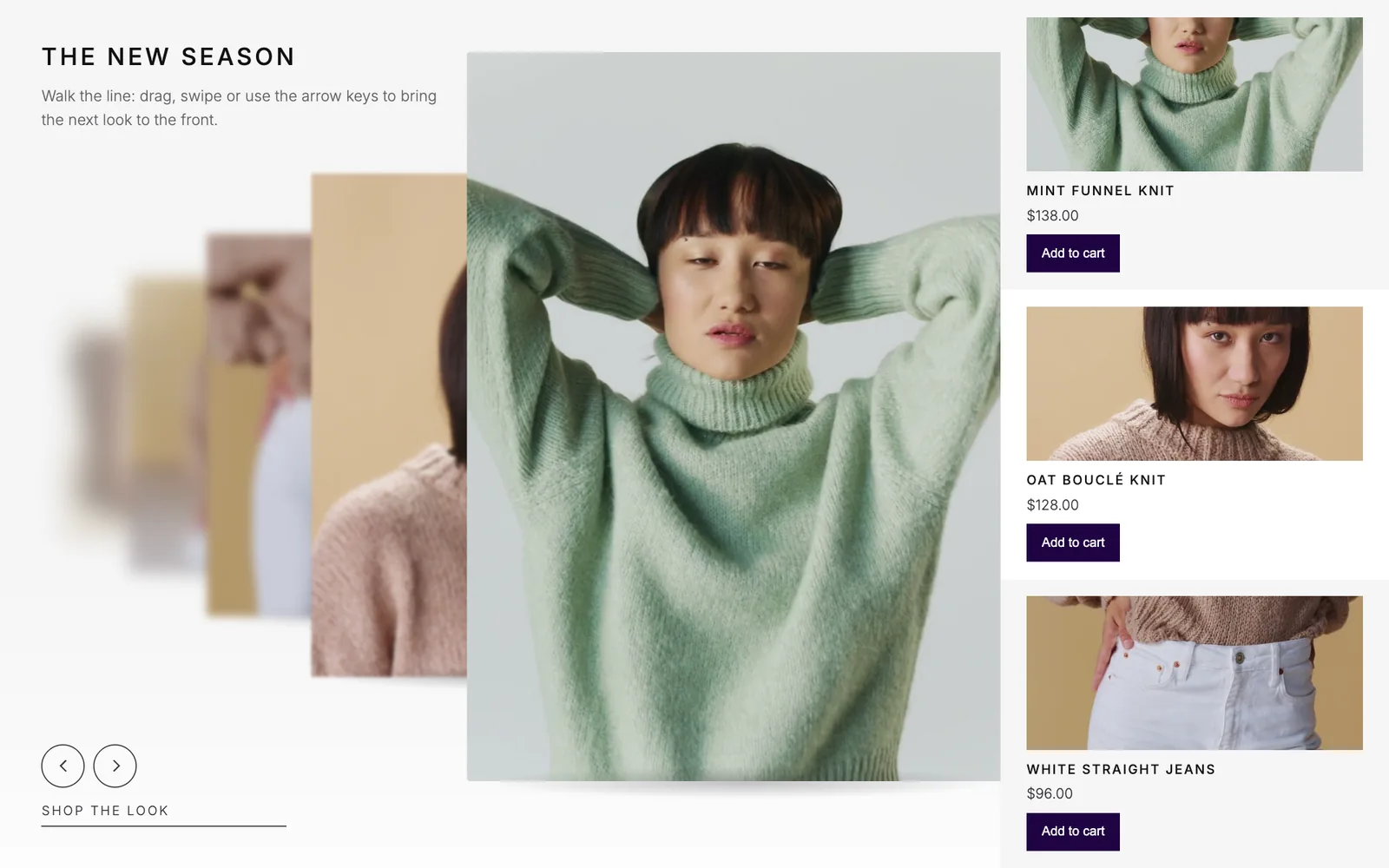
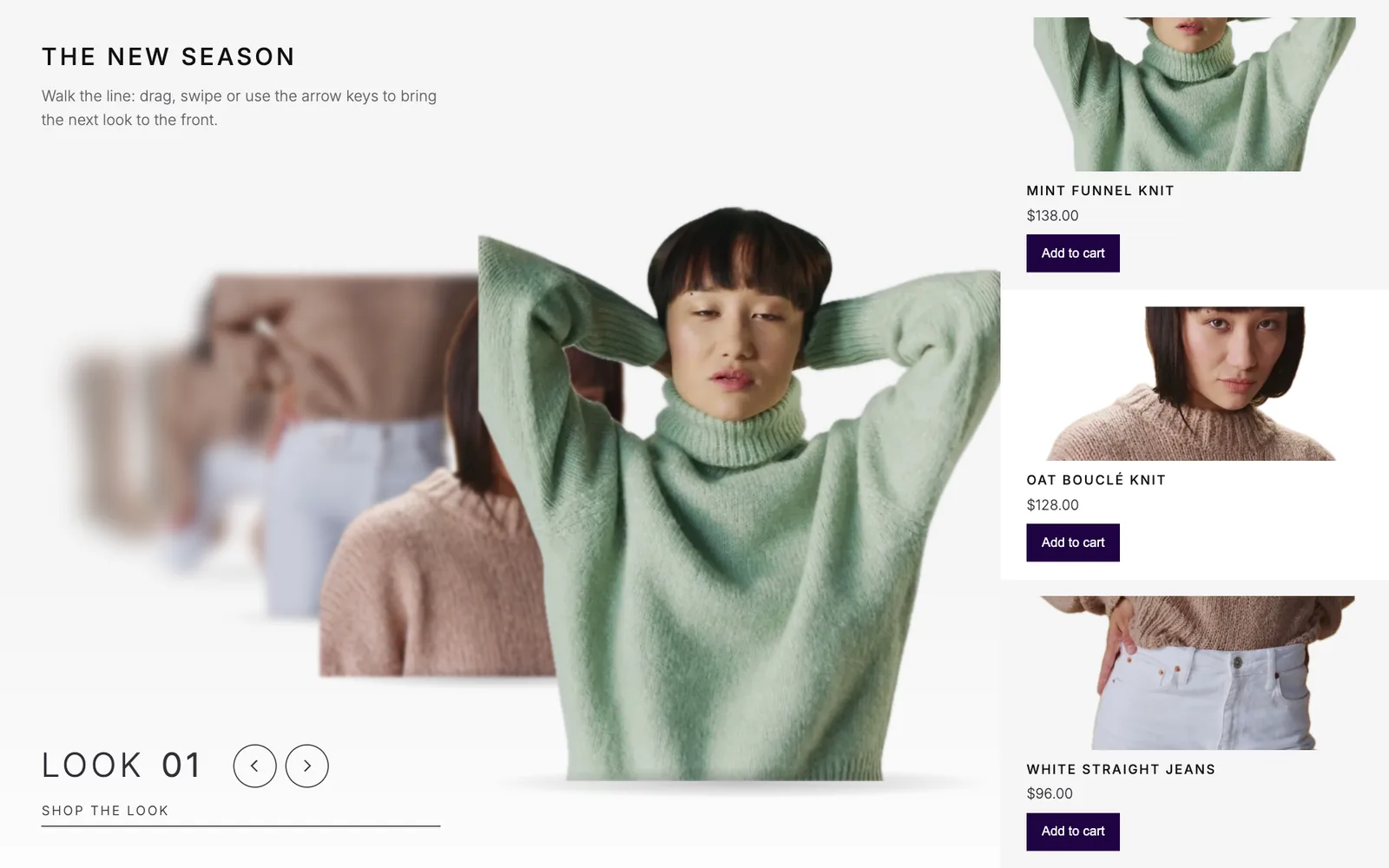
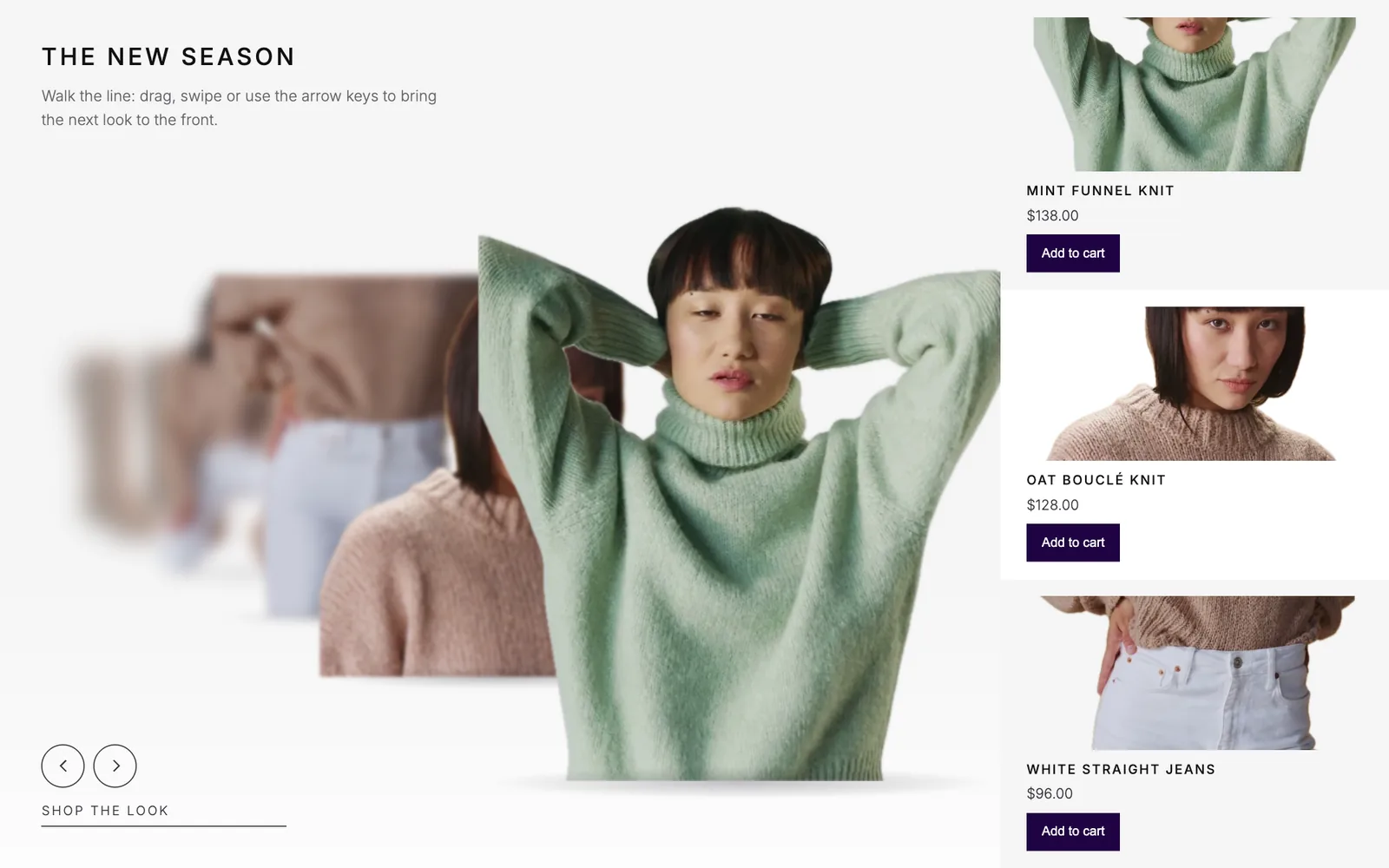
Framed, look number on: each photo fills a frame with softly rounded corners, and the big number counts the looks. Captured from a store running Purplish.
Add to cart sends the photo to the cart.
With Fly to cart on, a copy of the product photo flies from its card into the mini cart, and the cart gives a small bump.
- Needs a Mini-Cart. The photo flies to the Mini-Cart block, usually in the header, and nothing flies without one.
- From the cards. It plays from the add to cart buttons on the product cards beside the line.
- On by default. Turn it off in the Runway panel and adding to the cart works as usual.
Good to know before you add it.
How the line behaves for every shopper, on every device.
- Phones
On small screens the line stands between the heading and the look number, and the cards move under it as one row that shoppers swipe.
- Reduced motion
Visitors who ask their device for reduced motion get no blur and no easing. Each move is one look with a short fade, and no photo flies.
- Keyboard and screen readers
The line takes focus and the arrow keys walk it. Screen readers hear which look is at the front and how many looks there are.
- Fewer than two looks
With fewer than two looks, the line doesn't show, and the heading, the short line and the collection show as usual.
- In the editor
The line shows on the published page only. In the editor you see the heading, the short line and the product cards, ready to edit.
- Speed
The script is 3.6 KB gzipped, with nothing else to load, and only pages with a Runway get it. The styles are 2 KB.
More of Purplish
- Scroll LookbookA product shoot that plays as the page scrolls, with each product card at its stop.
- Hanging RailProducts hang from clips on a rope and slide along it as the page scrolls.
- Product page colorsThe button, the selected option and the sale badge follow the color the shopper picks.
- Product galleryHover, full-screen and slide styles for the Product Gallery block.
- Product cardsTwenty-three card effects and add to cart on the photo for the shop page.
- EscalatorProduct photos ride up and down in columns, and shoppers add to cart from the photo.
Runway questions.
What store owners ask about the line. The docs cover every option.
How do I add a lookbook shoppers can swipe through in WooCommerce?
Add the Runway block from the Purplish group in the block inserter, or insert the "Runway lookbook" pattern. Pick the products in its Product Collection, then set Looks from, Photo shape, Look number and Fly to cart in the block's panel.
Which photos become looks?
Each product's featured photo, then its gallery photos, in the same order as the cards in the Product Collection. Set Looks from to Featured photo only for one look per product. Products without a photo give no look.
Do I need photos with a transparent background?
Only for Cutout. Framed works with any product photo and can crop its edges. Cutout shows the whole photo standing on the floor, so it looks best when the background is removed.
Why don't I see the line in the editor?
The line shows on the published page only, so the editor keeps the heading, the short line and the product cards easy to edit. Preview the page to walk the line.
Give your new collection a runway.
Add the Runway block to any page, pick the products and let shoppers walk the line.
Free and open source. Updated for Purplish 1.2.