
Put your products on an escalator and let shoppers pick one as it rides past.
Escalator is a Purplish block for WooCommerce. Product photos ride two or three columns, one going up and the next going down, like the escalators in a department store. Shoppers point at a photo to stop it and add the product from the photo.
Free and open source. New in Purplish 1.3.2.
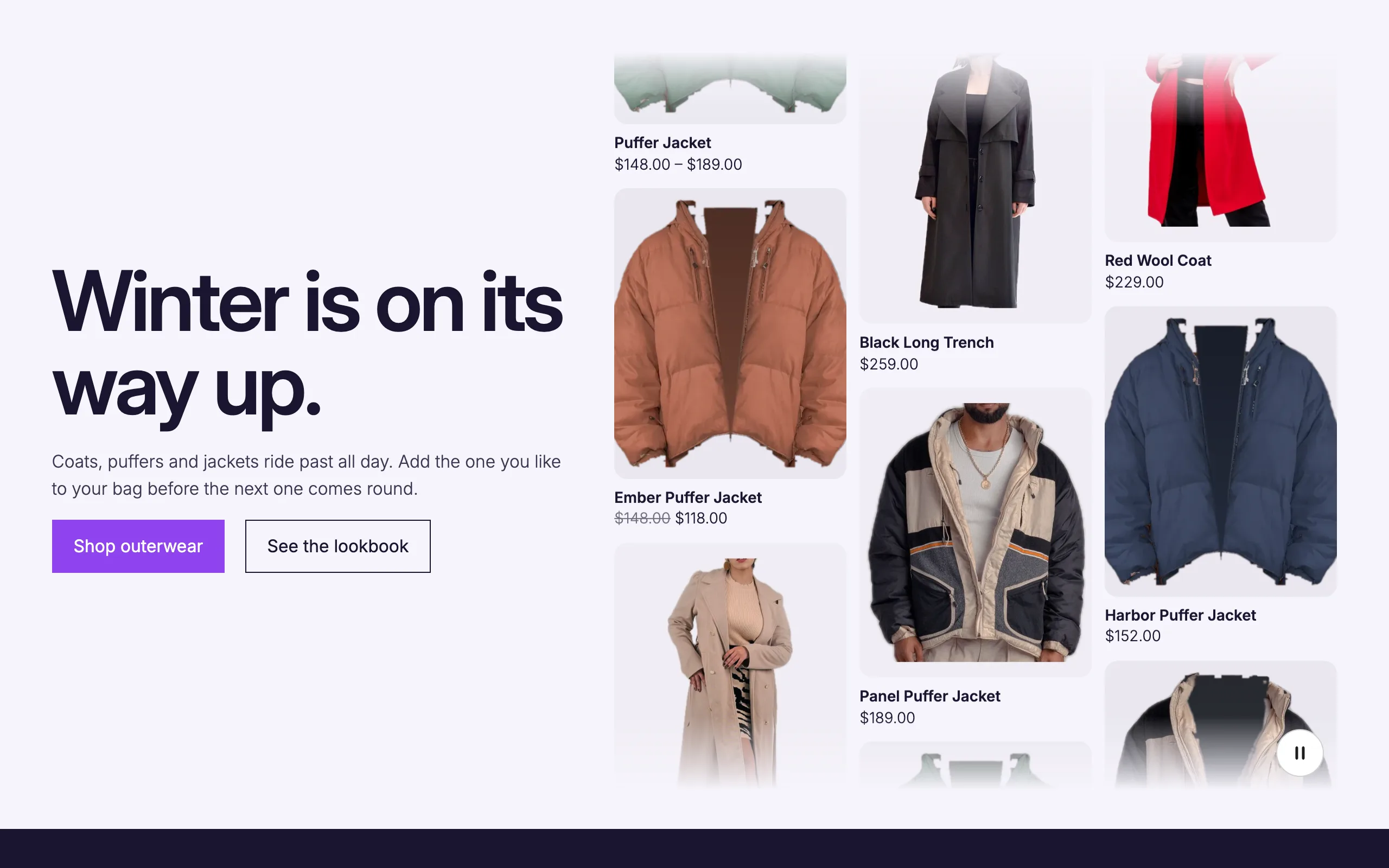
Add it like any other block.
Escalator sits in the Purplish group of the block inserter and shows your newest products as soon as you add it. It renders on the server, so the editor shows the same moving tiles your shoppers see.
- Add the block or a pattern
Insert Escalator on any page, or start from Escalator hero with products or Escalator hero with photos for a heading and buttons beside the columns.
- Pick the tiles
Show from 4 to 18 products: the newest, best sellers, on sale, featured or one category. Or pick six or more of your own photos.
- Set the ride
Choose three or two columns, a speed and a height, then how each tile looks when a shopper points at it.
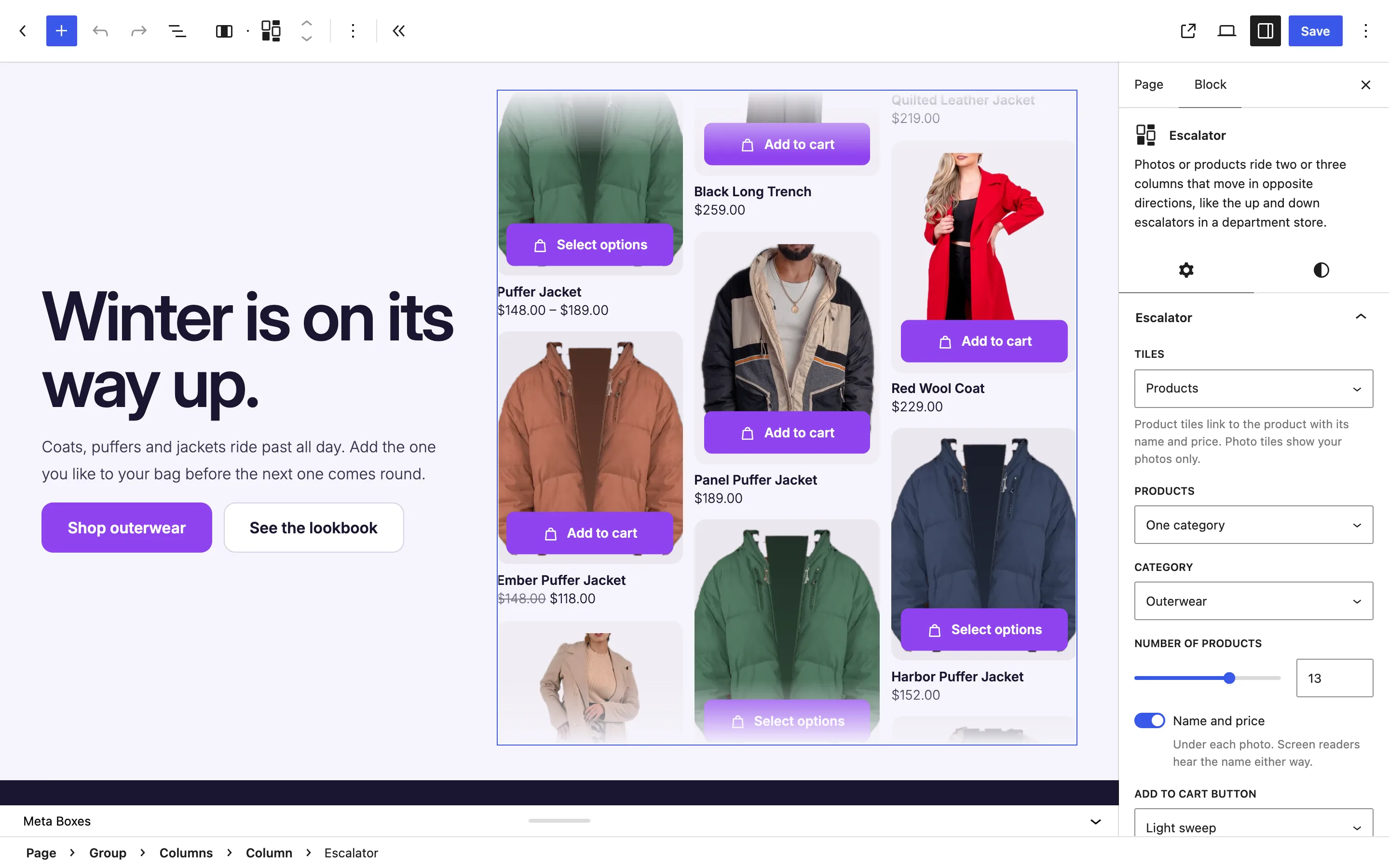
One column goes up, the next comes down.
The tiles loop without a gap, so the columns never run out. Every column stops while a shopper points at the block or tabs into it, and starts again when they move on.
Escalator settings
Three settings set the ride.
- Columns
- Three or two. Phones always show two.
- Speed
- Slow, Medium or Fast. The default is Medium.
- Height
- From 320 to 900 pixels. The default is 560, and phones cap it at 440.
Name and price show under each product photo, or turn them off for photos only. Screen readers hear the product name either way.
Tile look
- Hover. None, Ring, Lift, Light sweep or Push in, for the tile a shopper points at or tabs to.
- Effect color. Used by the ring and the lift shadow. Without one, the block's text color is used.
- Corner radius. From 0 to 48 pixels. Without one, the tiles take the Purplish radius from your theme.
Add to cart from the photo.
Turn on the add to cart button and it sits on each product photo. With a mouse it shows on hover and keyboard focus. On touch screens it stays in view.
- Four button looks. Filled, Liquid glass, Light sweep or Spectrum ring.
- Straight to the Mini-Cart. The product goes in through the WooCommerce Store API, the Mini-Cart updates and the photo flies into it.
- Products that need a choice. A variable product, or one that can't be bought right now, gets a link to its page with the usual WooCommerce label.
Good to know before you add it.
How the columns behave for every shopper, on every device.
- Phones
Phones show two columns and cap the height at 440 pixels. On touch screens the add to cart button stays on every photo, since there is no hover.
- Keyboard and screen readers
Each product is in the Tab order once. The copy that closes the loop is hidden from screen readers and skipped by Tab, and focus inside the block stops the columns.
- A pause button
Every Escalator has a pause button in the corner. It stops the columns until it's pressed again, and tells screen readers whether it's pressed.
- Reduced motion
Visitors who ask their device for reduced motion get columns that stand still and no pause button. Of the hover looks, only Ring shows, and no photo flies to the cart.
- Products without a photo
A product with no main image is skipped, so every tile has a photo. With Photos chosen and none picked yet, the editor shows a placeholder.
- Speed
The columns move with CSS alone. The script for the pause and cart buttons is 1.4 KB gzipped and the styles are 2.2 KB, and only pages with an Escalator get them.
More of Purplish
- RunwayProduct photos stand in a line that shoppers walk one look at a time.
- ShowfloorCut-out looks stand on a turning floor, and shoppers buy the whole outfit.
- Hanging RailProducts hang from clips on a rope and slide along it as the page scrolls.
- Store patternsA Flagship home page, header, phone menu and footer, plus cart and checkout patterns.
- Button effectsA glow ring, light sweep, liquid glass and spectrum ring for the Button block.
- Filters and mini-cartFilter chips that match your store, and a mini-cart that answers each add to cart.
Escalator questions.
What store owners ask about the moving columns. The docs cover every option.
How do I add moving product columns to a WooCommerce home page?
Add the Escalator block from the Purplish group in the block inserter, or insert Escalator hero with products. Pick which products show and how many, then set the columns, speed and height. It works on any page, not only the home page.
Can I use my own photos instead of products?
Yes. Set Tiles to Photos and pick six or more images from the media library. They ride the columns in the order you pick them. Photo tiles don't link anywhere and have no add to cart button.
Which products show up?
The newest products, best sellers, products on sale, featured products or one category, from 4 to 18 of them. Products hidden from the catalog stay out, products without a main image are skipped, and out of stock products stay out when your store hides them.
Can shoppers stop the moving columns?
Yes. The columns stop while a shopper points at the block or tabs into it, and the pause button stops them until it's pressed again. Visitors who ask for reduced motion see columns that stand still from the start.
Give your products a ride.
Add the Escalator block to any page, pick the products and let shoppers add them as they ride past.
Free and open source. New in Purplish 1.3.2.