

Move the mouse over a photo in WooCommerce's Product Gallery block and it zooms in by 30%. That's the only hover the block has. Its one setting, Zoom while hovering, turns that zoom on or off.

The top results for this search are plugins that swap the photo on shop page cards, theme docs, and snippets that turn the zoom off. None of them change the gallery on a block theme's product page. If the shop page cards are what you're after, my guide to customizing the WooCommerce shop page covers those.
TLDR
WooCommerce's gallery only zooms. Install Purplish, select the Product Gallery block in the Single Product template, and pick a Hover style in the Purplish panel.
- There are seven styles: 3D tilt, Zoom, Lift, Parallax, Glare, Loupe and Slow zoom.
- Any of them replaces WooCommerce's own hover zoom, and None keeps it.
- On a classic theme, pick Gallery hover style under WooCommerce, Settings, Products, Purplish.
On this page
I build Purplish, and I ran every step below on the demo store you see in the screenshots. The hover styles live in the same panel as the rest of the gallery options, so you set them in the Site Editor and not on a settings page.
What you need
WordPress 7.0 or later, WooCommerce 11.0 or later, and a block theme whose Single Product template uses the Product Gallery block. I test on the free Purple theme, which uses it. A classic theme gets the hover styles too, from a settings page, covered at the end.
Install Purplish
In your dashboard, go to Plugins, Add New, search for Purplish, then click Install Now and Activate. There's no account to create. Your gallery looks the same after activating, since Hover style starts on None until you pick one.
Get the next guide the day it's out
- The next step-by-step guide, with screenshots from the demo store.
- Only when a guide is out, never in between.
- One click to unsubscribe, from any email.
Pick a hover style
Open Appearance, Editor, Templates, then Single Product. Click the Product Gallery block, the one that holds the main photo and the thumbnails. In the Block tab of the sidebar, open the Purplish panel.
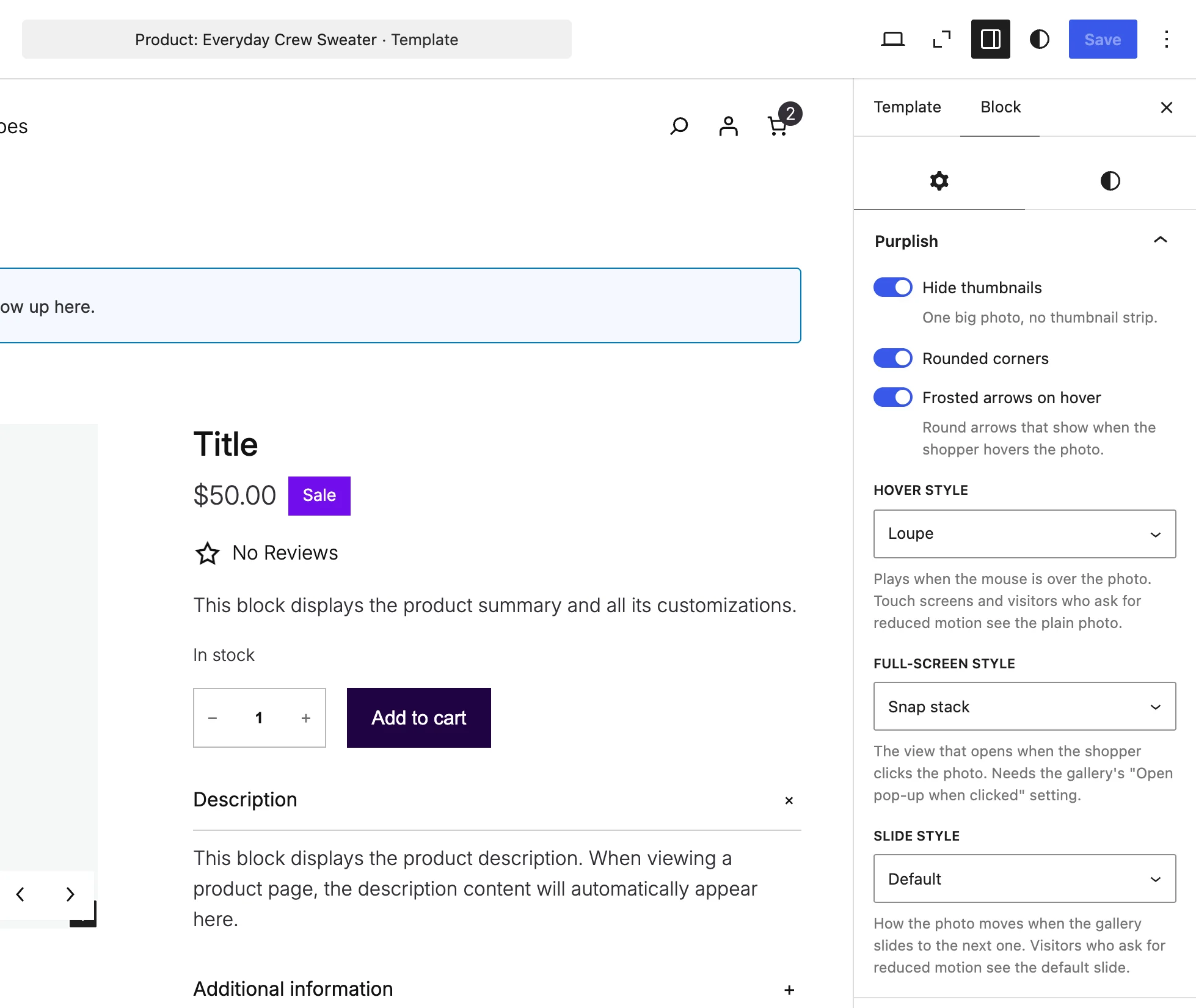
Open the Hover style menu. Each choice changes what the main photo does while the mouse is over it.
| Choice | What it does |
|---|---|
| None Default | Keeps WooCommerce's own hover zoom. |
| 3D tilt | Leans the photo toward the mouse. |
| Zoom | Magnifies the spot under the mouse. |
| Lift | Raises the photo on a soft shadow. |
| Parallax | Lets the photo drift with the mouse. |
| Glare | Runs a light across the photo. |
| Loupe | Shows a round magnifier where the mouse points. |
| Slow zoom | Pushes in on the photo while the mouse stays on it. |
For a knit sweater, or any photo where shoppers want to see the fabric, I'd pick Zoom or Loupe. Both magnify. Loupe only magnifies inside its circle, so the rest of the photo stays in view around it. That's the style on the demo store in the first screenshot.
3D tilt, Lift, Parallax and Glare don't magnify anything. They give the photo a bit of movement under the mouse, which fits a clean studio shot better than a close-up. Slow zoom sits in between: it pushes in slowly while the mouse rests on the photo.
Save the template when you're done. The style is saved on the block in this template, so another template can use a different one.
Try it on your store
Open a product and move the mouse slowly across the main photo.
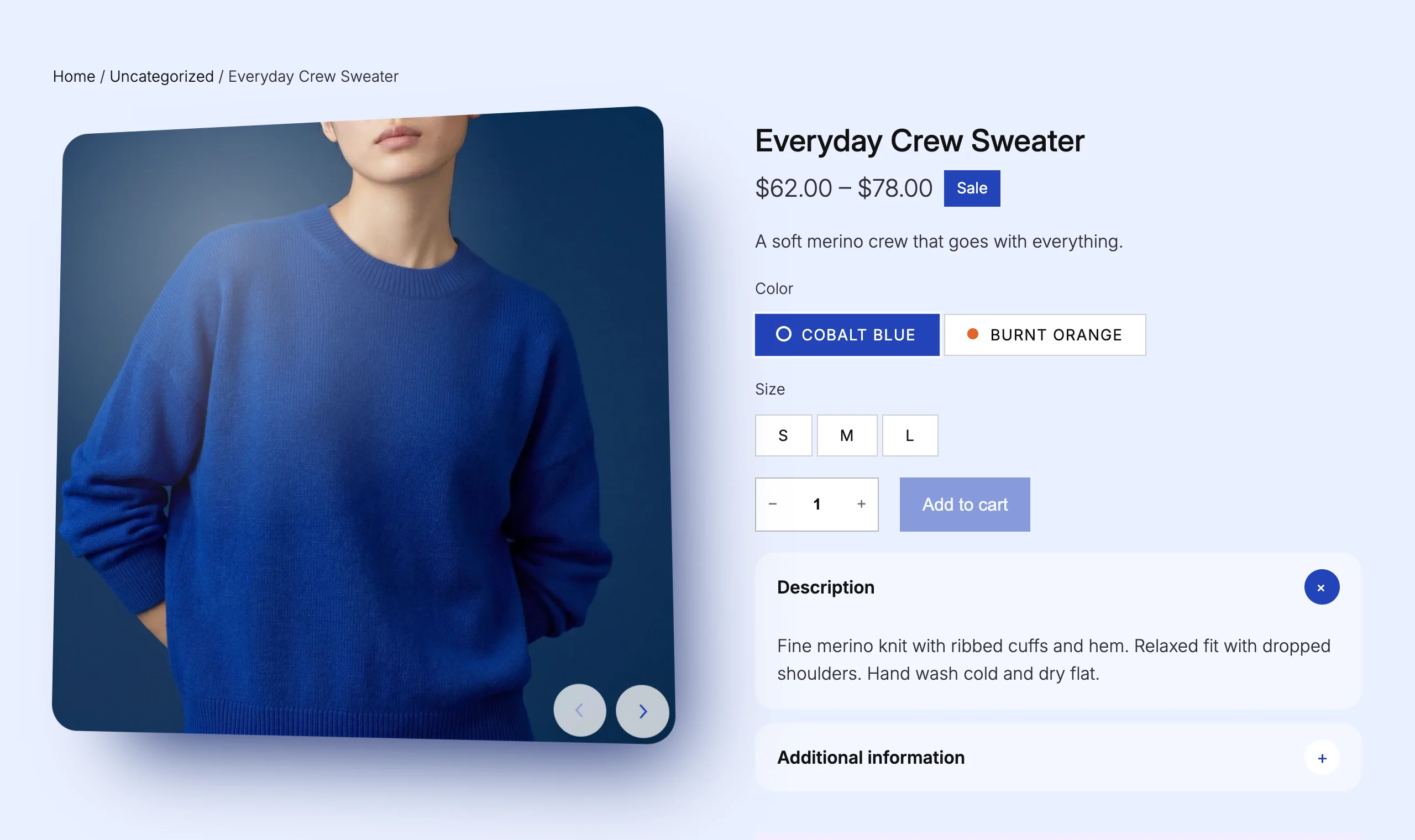
Then open the same page on your phone. Nothing moves, and that's on purpose. Touch screens have no mouse, so they get no hover style. Visitors who ask their device for reduced motion see the plain photo too.
The same panel also changes the full-screen view and how the next photo slides in. You can see those on the product gallery feature page.
If you only want the zoom gone
You don't need a plugin for that. Select the Product Gallery block, and in the Media Settings panel of the sidebar, turn off Zoom while hovering. Save the template, and the photo stays still under the mouse.
On a classic theme the zoom comes from the theme, and there's no switch for it. This filter turns it off. Add it to your child theme's functions.php or a code snippets plugin like WPCode.
// Turn off WooCommerce's hover zoom on the classic product gallery.
add_filter( 'woocommerce_single_product_zoom_enabled', '__return_false' );
Picking a Purplish hover style turns WooCommerce's zoom off on its own, on block and classic themes, so you don't need the filter as well.
Good to know
Good to know
- To get WooCommerce's zoom back, set Hover style to None.
- On a classic theme, pick Gallery hover style under WooCommerce, Settings, Products, Purplish. It has the same seven styles.
- Frosted arrows and the full-screen and slide styles need a block theme.
- The effects script loads only on pages where a block uses a Purplish effect, so the rest of the store doesn't load it.
If a style behaves oddly with your theme's gallery, open an issue on GitHub and name the theme. I test on Purple, so other themes are where I need the reports.

Leave a question or note