
Where to find it
Open Appearance, Editor, Templates, Single Product. Select the Product Gallery block, then pick a Hover style in the Purplish panel of the block sidebar.
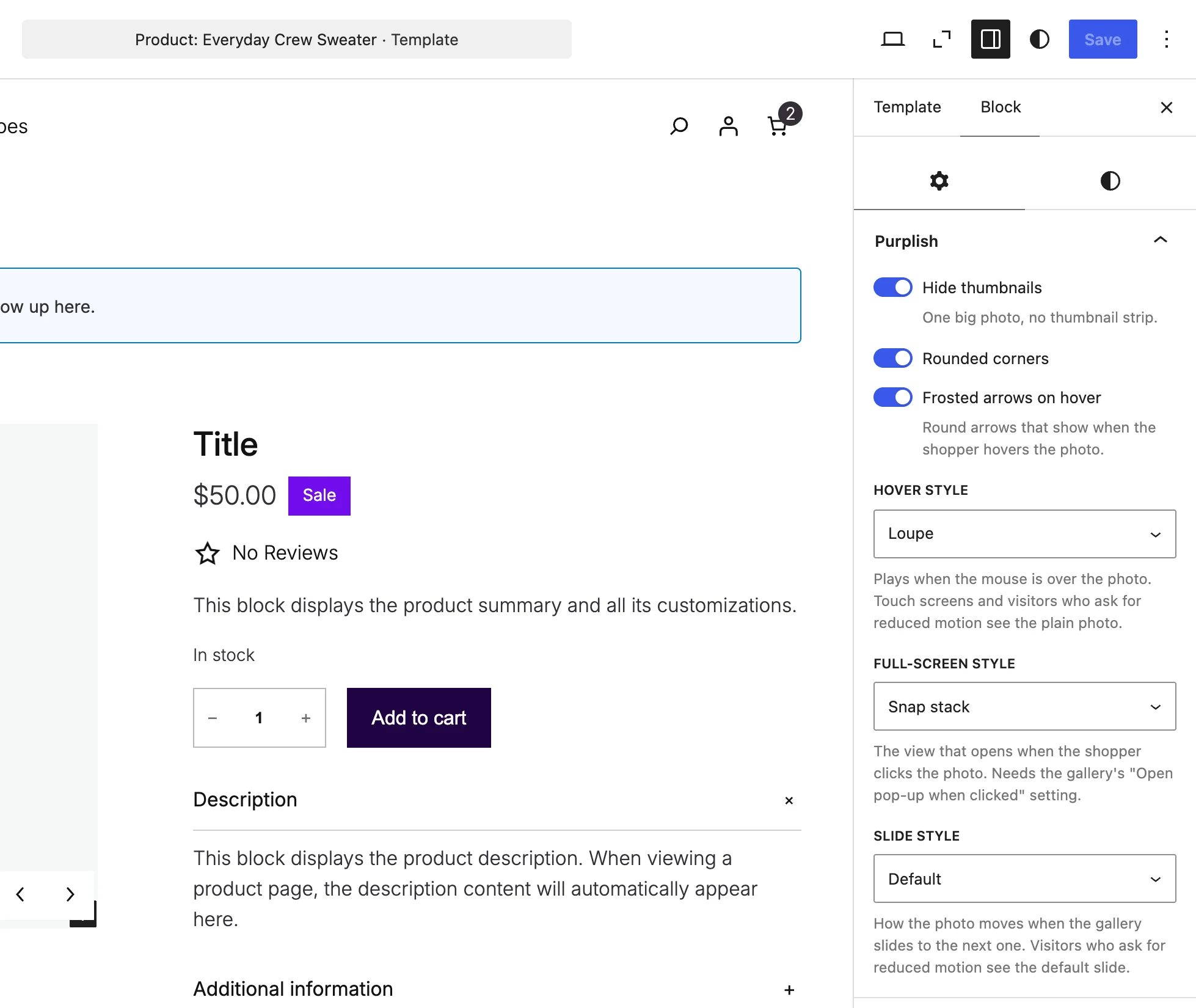
The Purplish panel on the Product Gallery block, with Hover style set to Loupe.
The choices
Hover style starts on None. Pick any of the other seven, and the main photo reacts while the mouse is over it.
| Choice | What it does |
|---|---|
| None Default | Keeps WooCommerce's own hover zoom. |
| 3D tilt | Leans the photo toward the mouse. |
| Zoom | Magnifies the spot under the mouse. |
| Lift | Raises the photo on a soft shadow. |
| Parallax | Lets the photo drift with the mouse. |
| Glare | Runs a light across the photo. |
| Loupe | Shows a round magnifier where the mouse points. |
| Slow zoom | Pushes in on the photo while the mouse stays on it. |
See three of them
3D tilt, Loupe and Glare on the Everyday Crew Sweater, recorded on a demo store.
Good to know
Where hover styles don't play
- Phones and tablets have no mouse, so touch screens get no hover style.
- Visitors who ask their device for reduced motion see the plain photo.
- Any hover style replaces WooCommerce's own hover zoom. Leave it on None to keep the zoom.
- On a classic theme, pick Gallery hover style under WooCommerce, Settings, Products, Purplish.