
Stand your looks on a turning floor and let shoppers buy the whole outfit.
Showfloor is a Purplish block for WooCommerce. Cut-out looks stand on an oval floor, each with a name, a short line and the products in it. Shoppers turn the floor, open a look and add one piece or all of them.
Free and open source. New in Purplish 1.3.
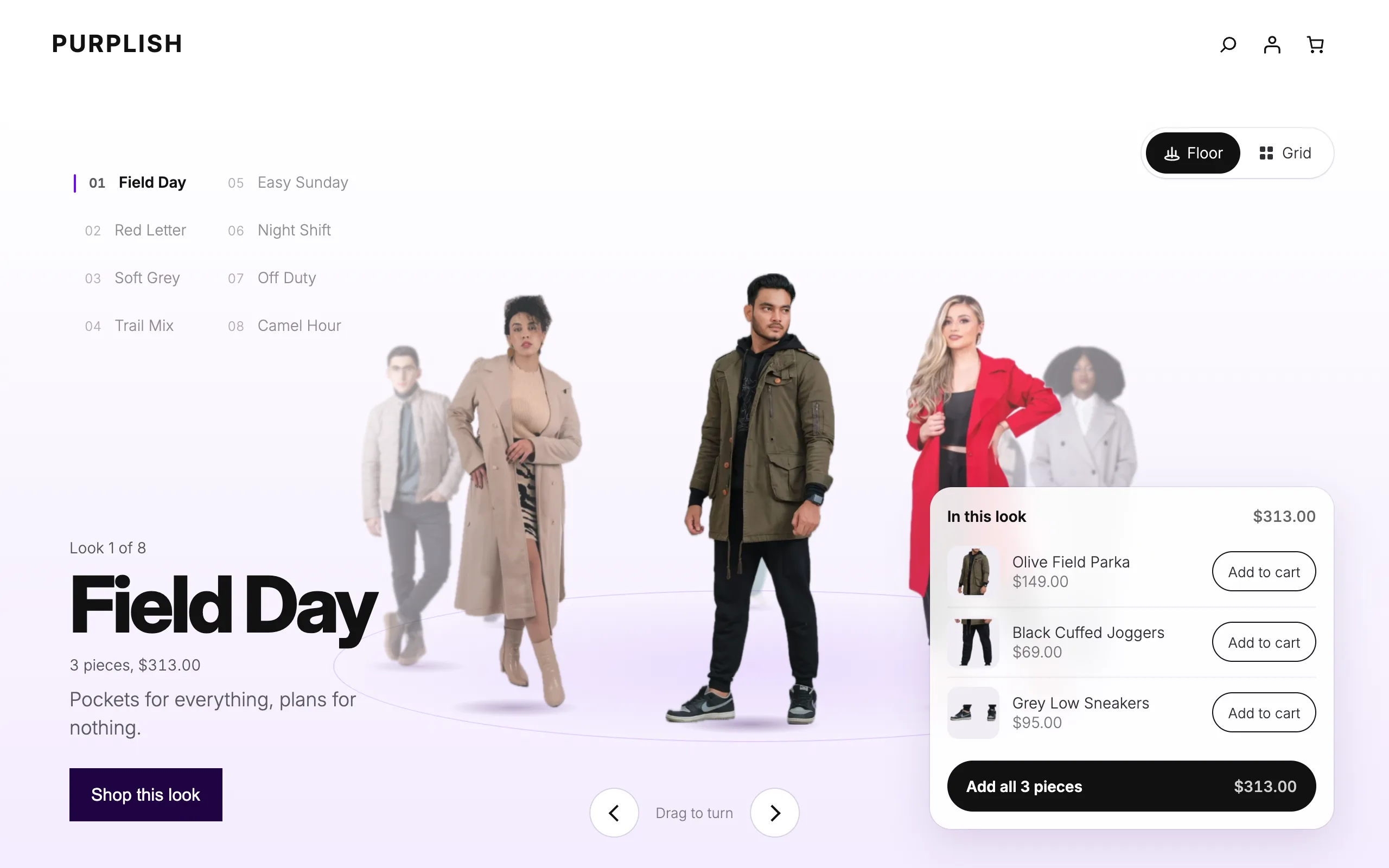
Add it like any other block.
Showfloor sits in the Purplish group of the block inserter and starts with three empty looks. Each look is a Look block inside it, edited on the floor and in its own panel.
- Add the block or the pattern
Insert Showfloor on any page, or the Flagship floor pattern for eight looks on drawn figures. Add look in the toolbar adds one more.
- Build each look
Choose a full-length cut-out, give it a name and a short line, then search for the products in it.
- Place the markers and the face
Drag each numbered marker onto its piece, and set where the round face crop sits for the look list.
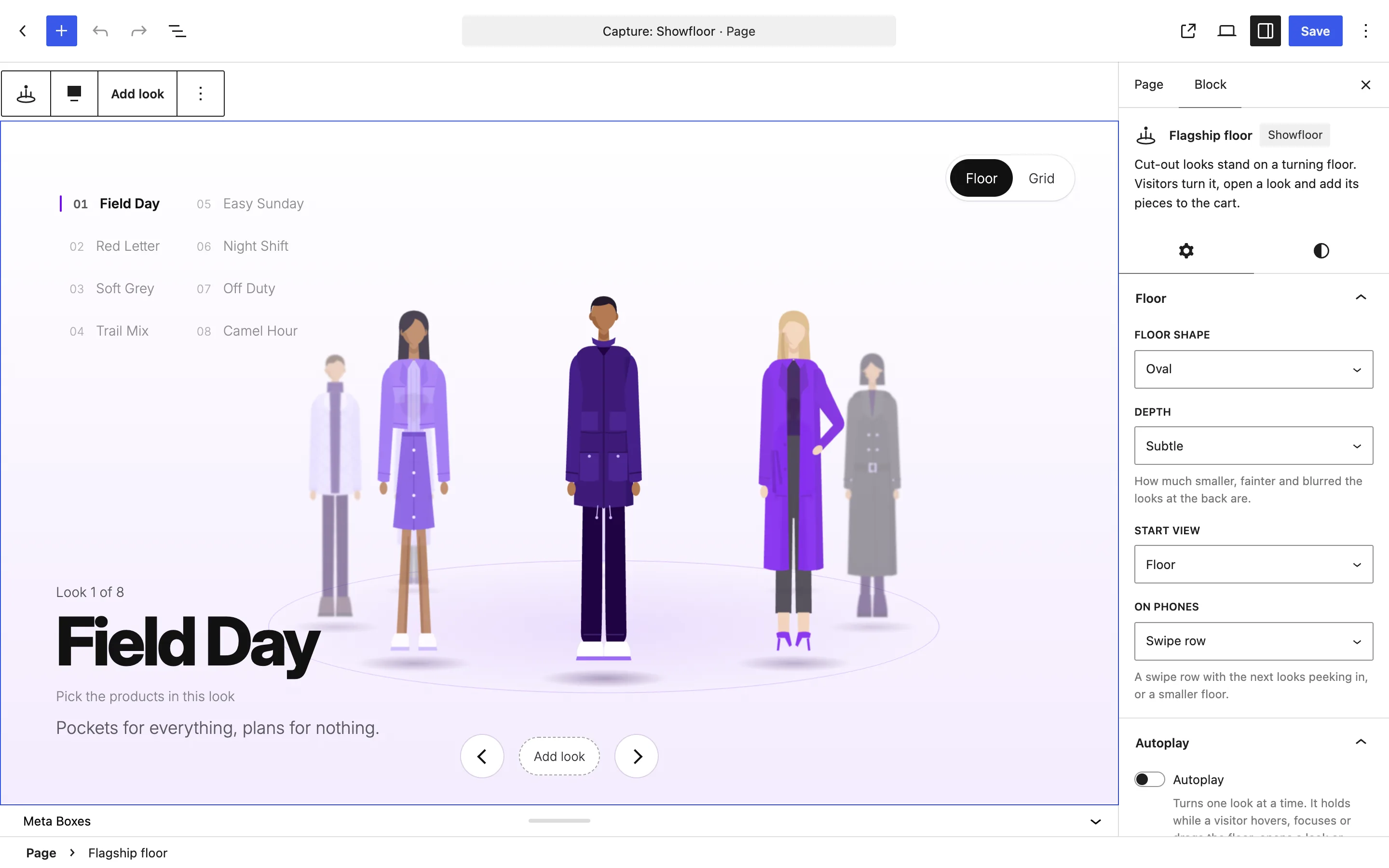
Shoppers turn the floor to the look they like.
The look at the front sets the name, the short line, the total and the product panel beside it. Shoppers drag the floor, press an arrow, pick a name in the look list or switch to a grid of every look.
Autoplay
Off unless you turn it on.
- Autoplay
- Turns the floor one look at a time. Off by default.
- Seconds for each look
- From 3 to 8. The default is 4.
- Pause button
- With timer ring, Plain or Hidden.
Autoplay holds while a shopper hovers, focuses or drags the floor, opens a look or views the grid. It never runs for visitors who ask for reduced motion. Hide the pause button and the panel warns that the page may fall short of WCAG 2.2.2 (Pause, Stop, Hide).
Turning the floor
- Drag, swipe or press an arrow. A mouse drag, a sideways trackpad swipe, the arrow keys and the two buttons all turn the floor. A normal scroll wheel still scrolls the page.
- The look list. Numbers and names by default, or Faces, Names, Numbers or Off. On desktop each row is a 44px tap target.
- Floor or grid. The switch shows every look in a grid with its name, piece count and total. Set Start view to Grid to open on the grid.
Oval or flat, numbers or faces.
Floor shape and Look list change the floor the most. These frames show the Flagship floor pattern as it ships: eight drawn figures in the plugin and no products picked yet, so each look shows its figure and name only.
Try the two options

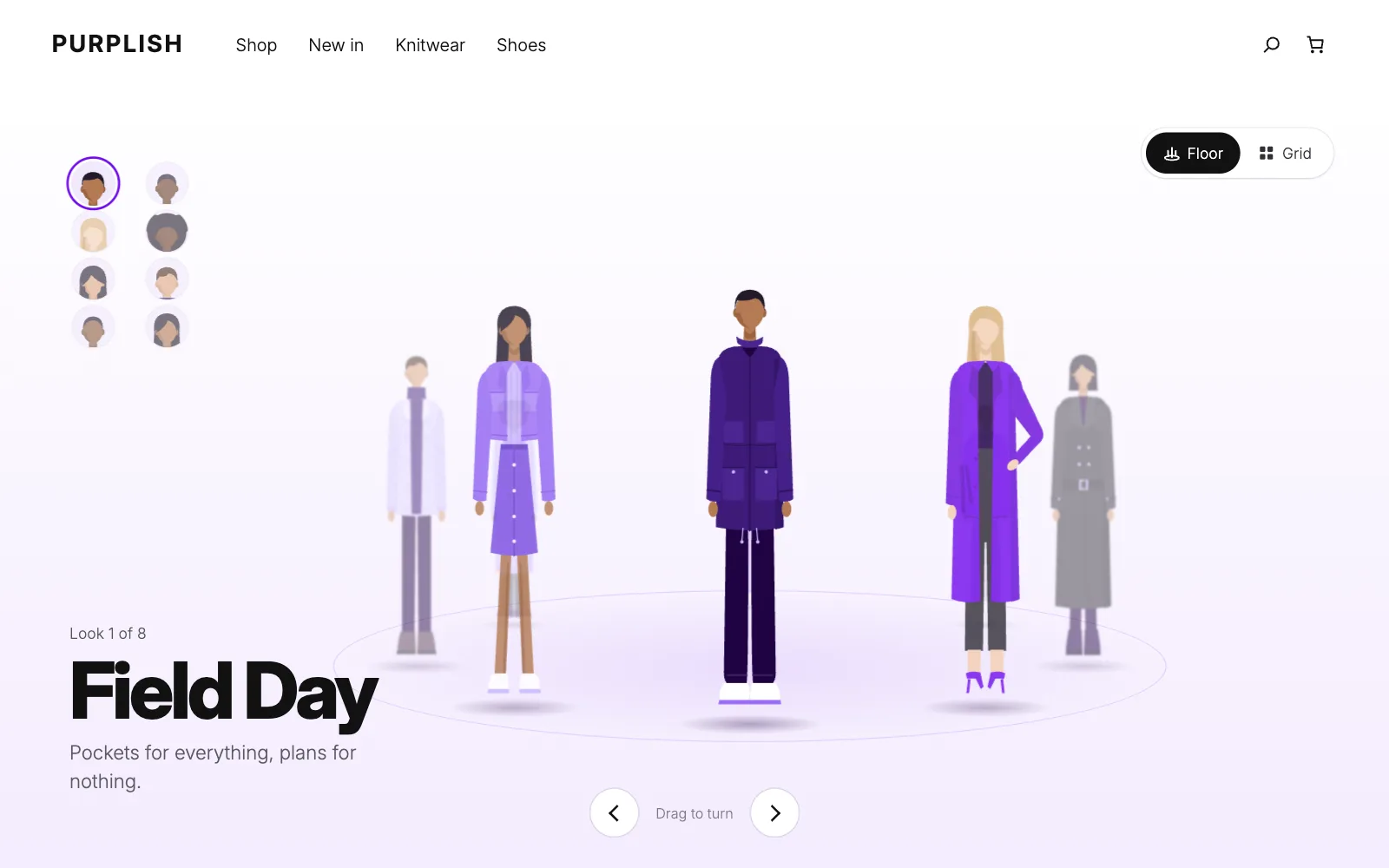
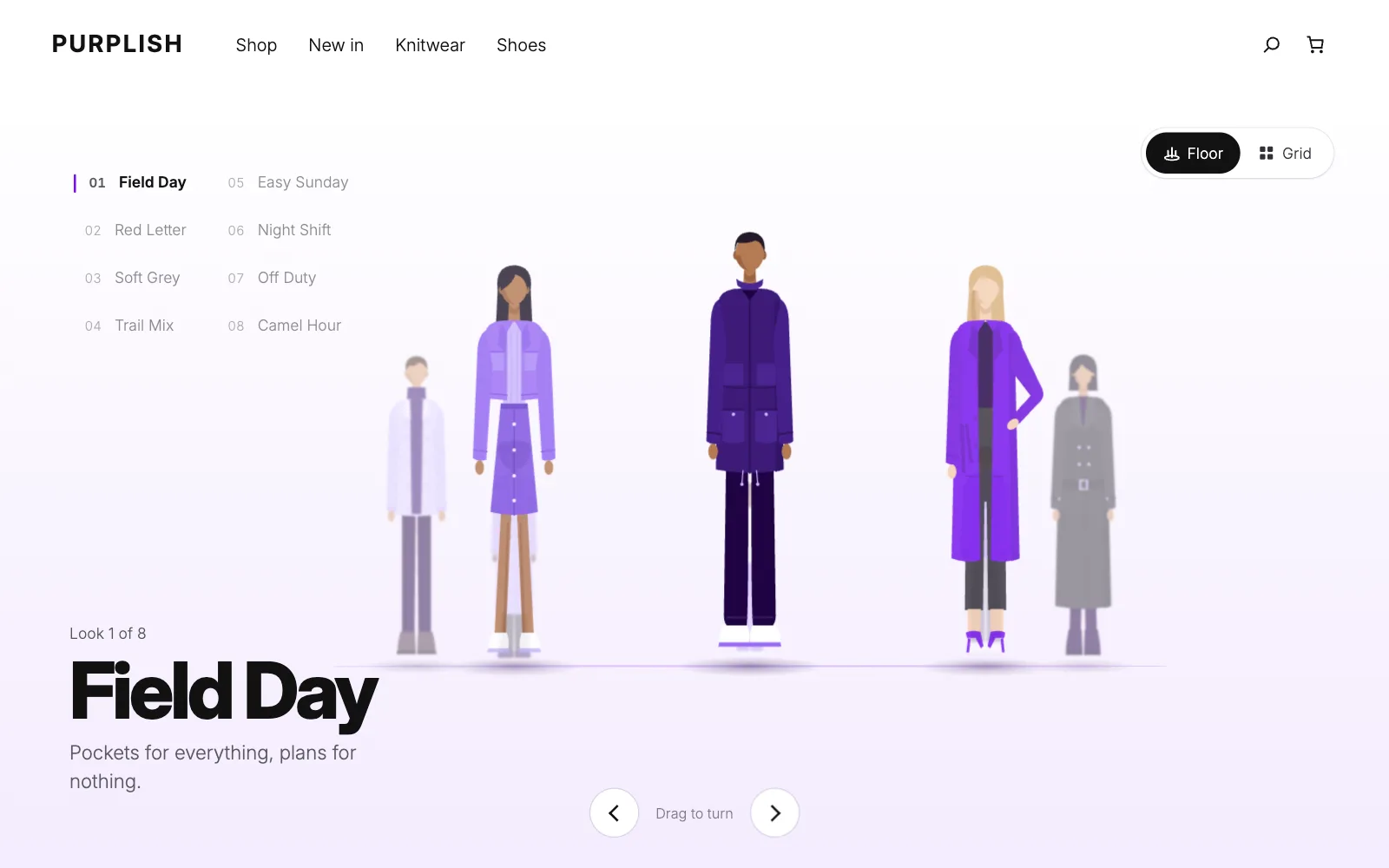
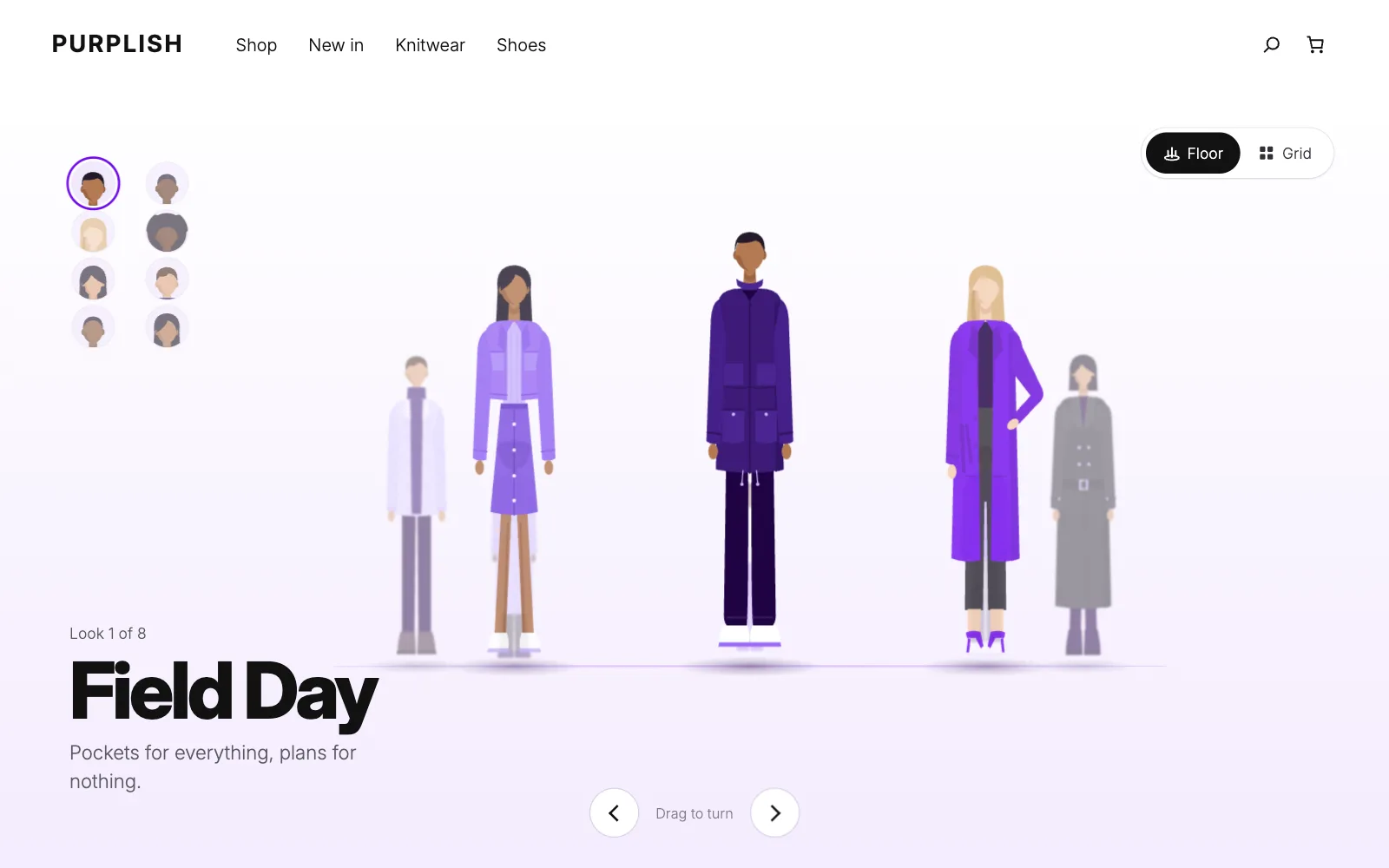
Oval, numbers and names: the looks stand around an oval floor and get smaller, fainter and softer toward the back. The look list shows each number and name. Captured from the Flagship floor pattern on a store running Purplish.
Open a look, then add one piece or the whole outfit.
Shop this look opens the look as a price tag beside the figure, with a numbered marker on each piece. Shoppers add one piece from its row, or every piece with one button.
- Markers that match the rows. Pointing at a marker lights up its row, and the other way round. Set Tap a marker to Add it to the cart and a tap adds that piece.
- The whole look in one go. The whole-look button adds every piece in one request. It shows when every piece is a simple product in stock.
- Fly to cart. With a Mini-Cart on the page, the product photo flies into it when a shopper adds a piece from the panel beside the floor.
Good to know before you add it.
How the floor behaves for every shopper, on every device.
- Phones
On phones and upright tablets the looks run as a swipe row with the next look peeking in. Set On phones to Small floor to keep the turning floor.
- Keyboard and screen readers
The floor takes focus, the arrow keys turn it and Enter opens the look at the front. Screen readers hear the look count, like Look 2 of 8, as it changes.
- Reduced motion
Visitors who ask their device for reduced motion get no autoplay and no blur. The floor jumps straight to each look, and no photo flies to the cart.
- Looks without products
A look with no products shows its figure and name only, with no shop button or panel. A pattern works before you pick a single product.
- Arrows in view
A Showfloor at the top of the page fills the window under your header, so the arrows show on load. On short windows they move up beside the looks.
- Speed
The script is 4.9 KB gzipped and the styles are 6.1 KB, and only pages with a Showfloor get them. Pieces go to the cart through the WooCommerce Store API, so the Mini-Cart updates.
More of Purplish
- Changing RoomTops and bottoms turn in rings around a model, and shoppers build the outfit.
- Store patternsThe Flagship home, with a Showfloor at the top, plus a header, footer and cart patterns.
- WardrobeA mega menu for the Navigation block, with category links, photo tiles and a look card.
- RunwayProduct photos stand in a line that shoppers walk one look at a time.
- Scroll LookbookA product shoot that plays as the page scrolls, with each product card at its stop.
- EscalatorProduct photos ride up and down in columns, and shoppers add to cart from the photo.
Showfloor questions.
What store owners ask about the floor. The docs cover every option.
How do I add shop the look to a WooCommerce store?
Add the Showfloor block from the Purplish group in the block inserter, or insert the Flagship floor pattern. Give each Look a cut-out, a name, a short line and its products, then place a marker on each piece. Shoppers open a look and add one piece or the whole look to the cart.
What photos do the looks need?
A full-length cut-out with a transparent background, as a PNG or WebP, shot from the same angle as the other looks. A Look can also use an image URL, which is how the Flagship floor pattern ships with eight drawn figures.
Can a look include variable products?
Yes. A product that needs options chosen links to its product page from its row. The whole-look button only shows when every piece is a simple product in stock, so nothing goes to the cart without its options.
Does the floor turn on its own?
Only when you turn on Autoplay. It's off by default and turns one look every 3 to 8 seconds. It holds on hover, focus or drag, and never runs for visitors who ask for reduced motion. Keep the pause button so every visitor can stop it.
Give your looks a floor of their own.
Add the Showfloor block to any page, stand your looks on the floor and let shoppers buy the whole outfit.
Free and open source. New in Purplish 1.3.