
Where to find it
Add an Escalator block from the Purplish group of the block inserter, on any page, post or template. Select it, then open the Escalator panel in the block sidebar. Tiles, Products and the product settings sit at the top.
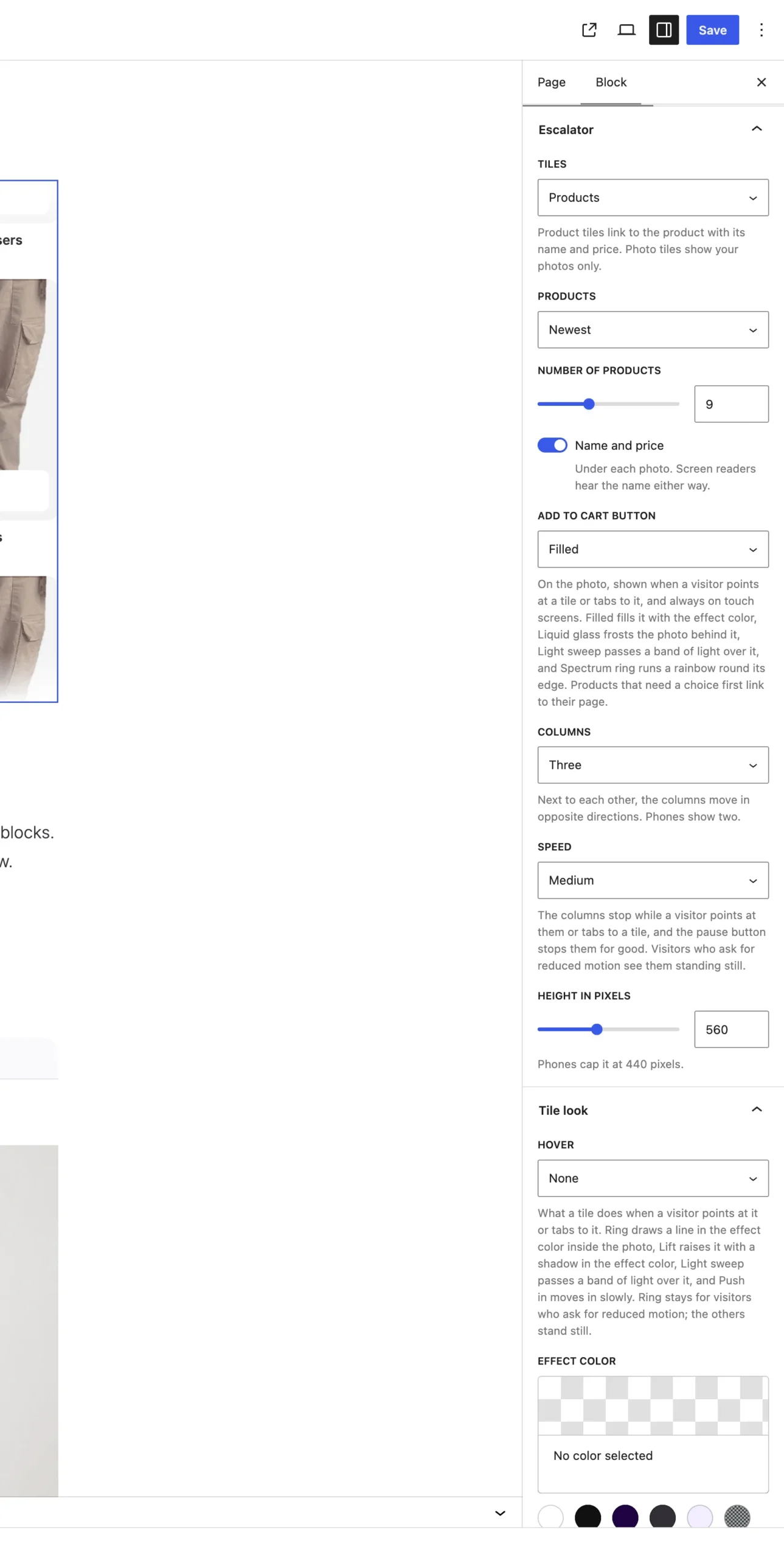
The editor shows the same moving tiles as the published page.
The choices
It starts on Products.
| Choice | What it does |
|---|---|
| Products Default | Each tile is a product photo that links to the product, with its name and price under it. |
| Photos | Each tile is a photo you pick from the Media Library, in the order you pick them. Photo tiles show your photos only. |
Products:
| Choice | What it does |
|---|---|
| Newest Default | Your newest products. |
| Best sellers | The products that sold most. Before your first sale, it shows the newest. |
| On sale | Products on sale. |
| Featured | Products you starred as featured. |
| One category | Products from the category you pick under Category. |
More settings for products:
| Choice | What it does |
|---|---|
| Number of products | 4 to 18, 9 by default. |
| Name and price | On by default. Turned off, the tiles show the photo only, and screen readers still hear each name. |
Good to know
- Only products with a photo show. If none match, the editor says so and the published page shows nothing.
- Products follow the store's catalog visibility, and out-of-stock products stay out when WooCommerce hides them.
- With Photos, pick six or more. Each photo keeps the alt text you gave it in the Media Library.
- Each column holds its tiles twice so the loop has no seam. The copy is hidden from screen readers and the Tab key, and still takes a click.
- For a ready hero with text and buttons beside it, see Escalator hero patterns.