
Where to find it
Add a Showfloor block from the Purplish group of the block inserter, on any page, post or template. Select it, then pick the floor's shape and depth in the Floor panel of the block sidebar.
A new Showfloor starts with three empty looks. Add more with Add look in the block toolbar, and fill each one in on its Look block.
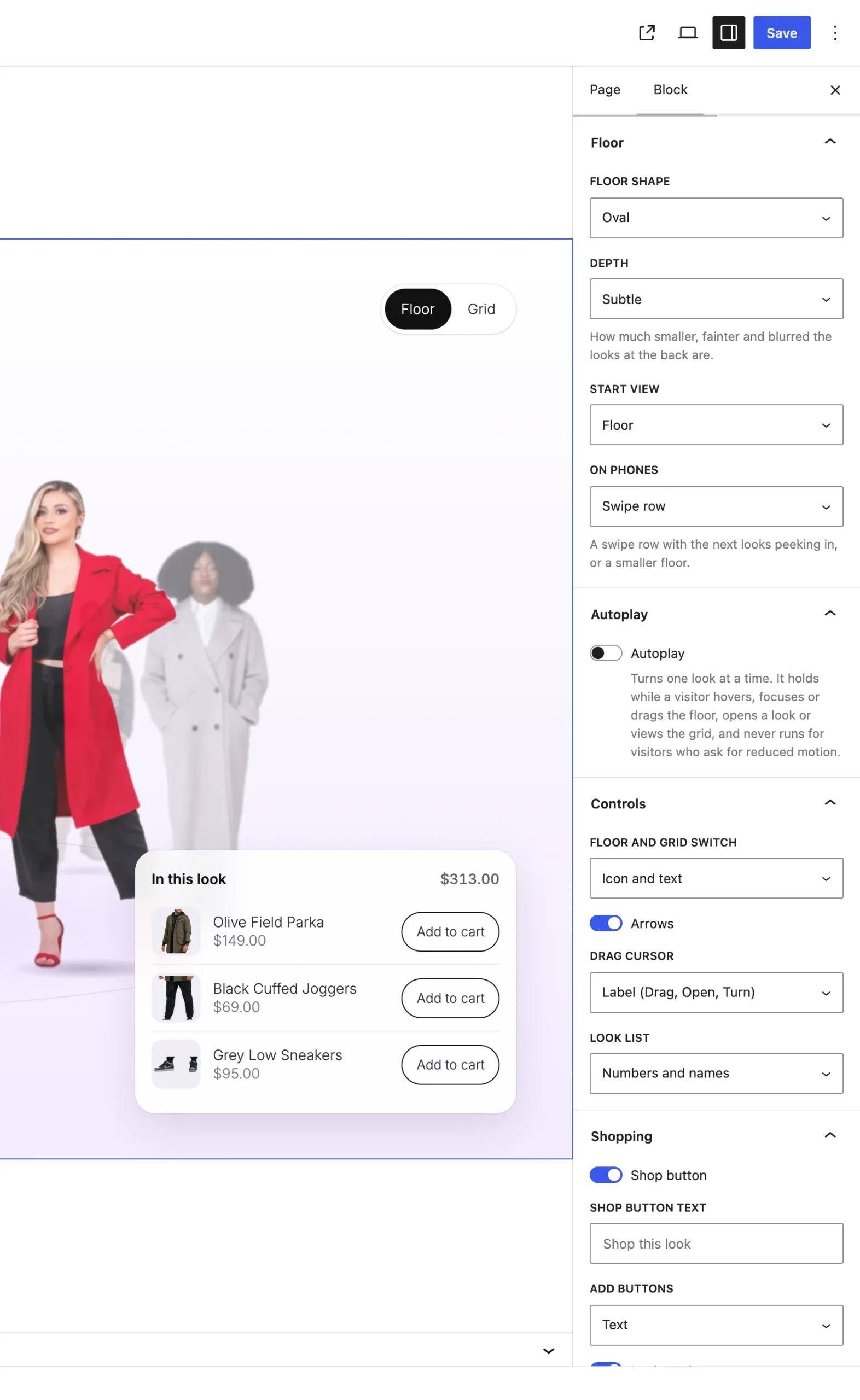
The Floor panel on the Showfloor block.
The settings
| Setting | What it does |
|---|---|
| Floor shape | Oval stands the looks round a turning oval. Flat row stands them side by side. It starts on Oval. |
| Depth | How much smaller, fainter and blurred the looks at the back are: Subtle, Strong or Off. It starts on Subtle. |
| Start view | Whether the page opens on the floor or on a grid of every look. It starts on Floor. |
| On phones | Swipe row puts the looks in a row with the next ones peeking in. Small floor keeps the turning floor, smaller. It starts on Swipe row. |
Good to know
How shoppers turn it
- They drag the floor, swipe sideways on a trackpad, click Previous or Next, click a look at the back or a name in the look list.
- With the floor focused, Left and Right arrow keys turn it, and Enter opens the front look.
- Shop this look, or a click on the front look, opens it full screen with numbered markers on each piece.
- The block is 600px to 900px tall. At the top of a page it fills the window under the header.
- Phones and narrow screens stack the words, the floor and the product panel, and hide the look list.