
Where to find it
Open the template with your product cards, like Appearance, Editor, Templates, Product Catalog. Select the Product Stock Indicator block in the Product Template, then turn on Grey out sold-out cards in the Purplish panel.
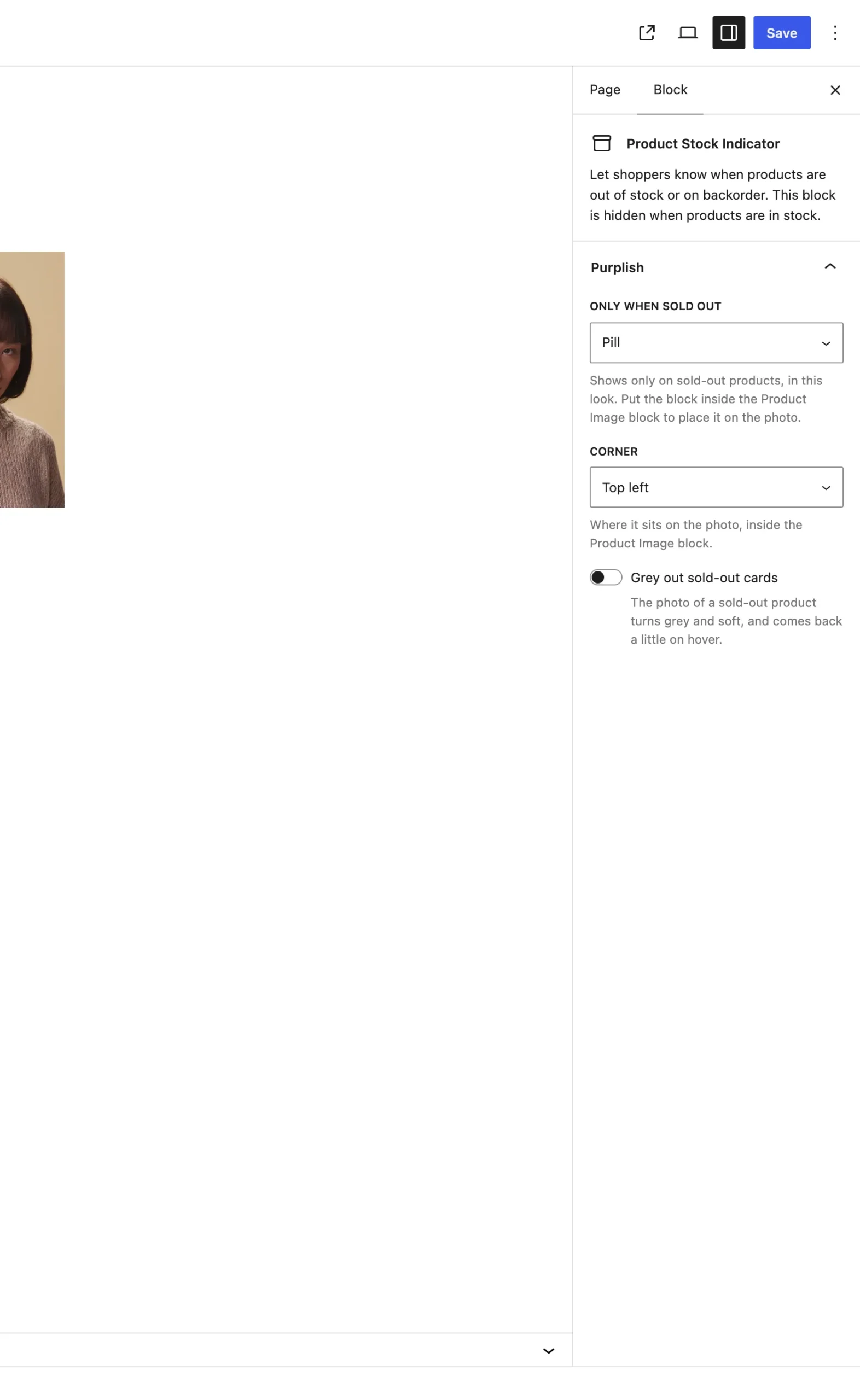
Grey out sold-out cards is the last setting in the panel.
What it does
A switch, off by default.
| Choice | What it does |
|---|---|
| Off Default | Sold-out cards look like the rest. |
| On | The photo of a sold-out product turns grey and soft. On hover or keyboard focus it comes back a little. |
Good to know
- It works without a sold-out look, but the Product Stock Indicator block has to be on the card.
- It greys cards in a Product Collection block.
- Visitors who ask their device for reduced motion see the change with no fade.