
Where to find it
Open the template with your product cards, like Appearance, Editor, Templates, Product Catalog. Add a Shelf Tag block inside the Product Template of a Product Collection block, from the Purplish group of the block inserter. Select it, then pick who it shows on under Show on in the Tag panel of the block sidebar. Put it inside the Product Image block to place it on the photo.
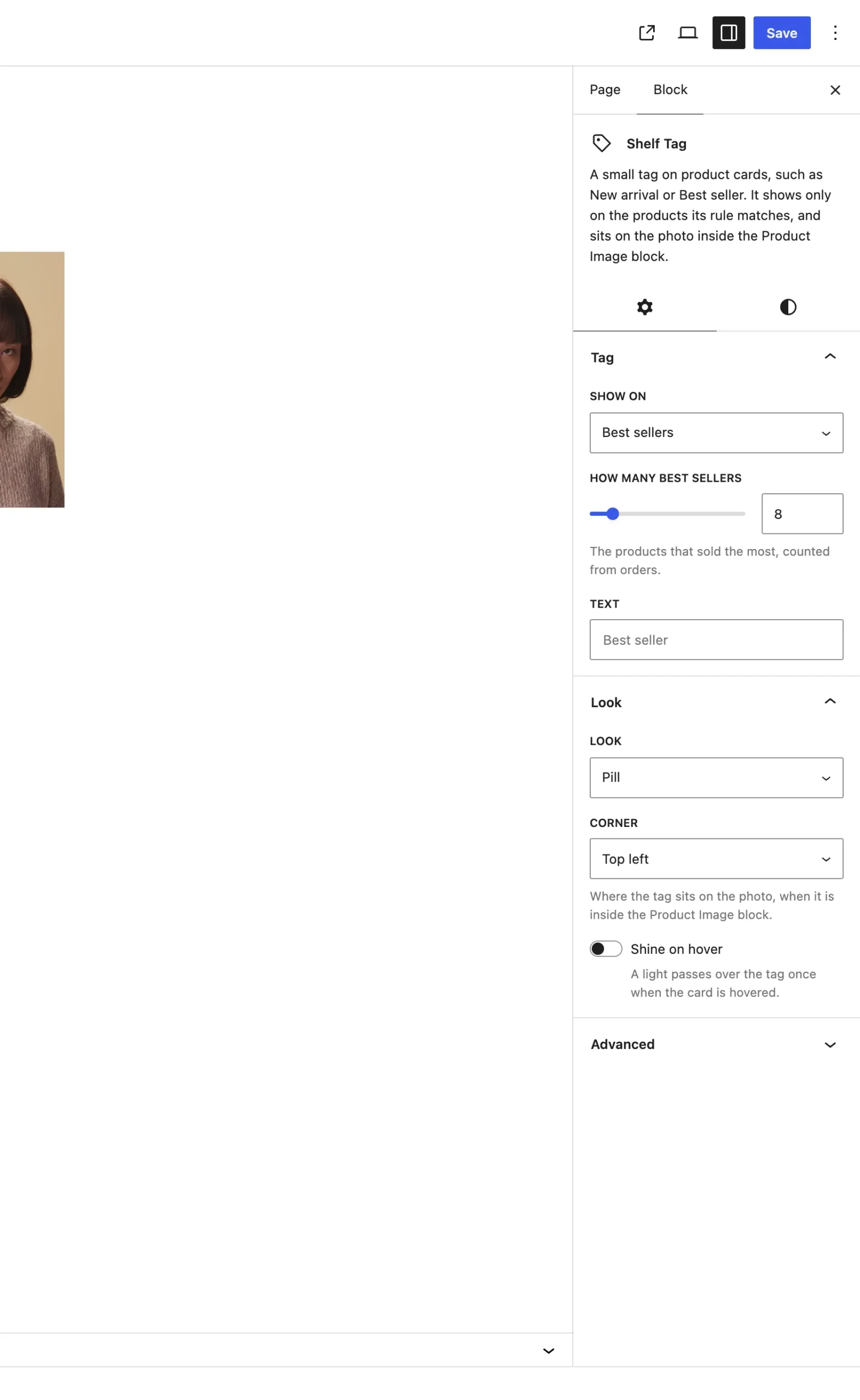
The Tag panel on the Shelf Tag block.
The choices
It starts on Best sellers. Each rule has one setting of its own, and Text sets the words on the tag.
| Choice | What it does |
|---|---|
| Best sellers Default | The products that sold the most, counted from orders. How many best sellers sets how many get the tag, from 1 to 50. It starts on 8. |
| New products | Products added in the last few days. New for how many days sets the number, from 1 to 365. It starts on 30. |
| Featured products | Products marked with the star in Products, All Products. |
Text:
| Choice | What it does |
|---|---|
| Empty Default | The tag reads Best seller, New arrival or Featured, to match the rule. |
| Your words | The tag reads what you type, like Staff pick. |
Good to know
- A card the rule leaves out gets no tag. In the editor, those cards show the tag faded with a dashed outline.
- Best sellers counts the whole store, not only the products in the collection. Only products that sold at least once count.
- New for how many days counts from the day the product was created, which is earlier than the day it went live when it sat as a draft first.
- Add more than one Shelf Tag to a card for more than one rule. Tags in the same corner stack.