
Where to find it
Edit a variable product and open Product data, Variations. Open a variation and pick a Page color: Automatic, Custom or Off. On a simple product, the same field is on the General tab.
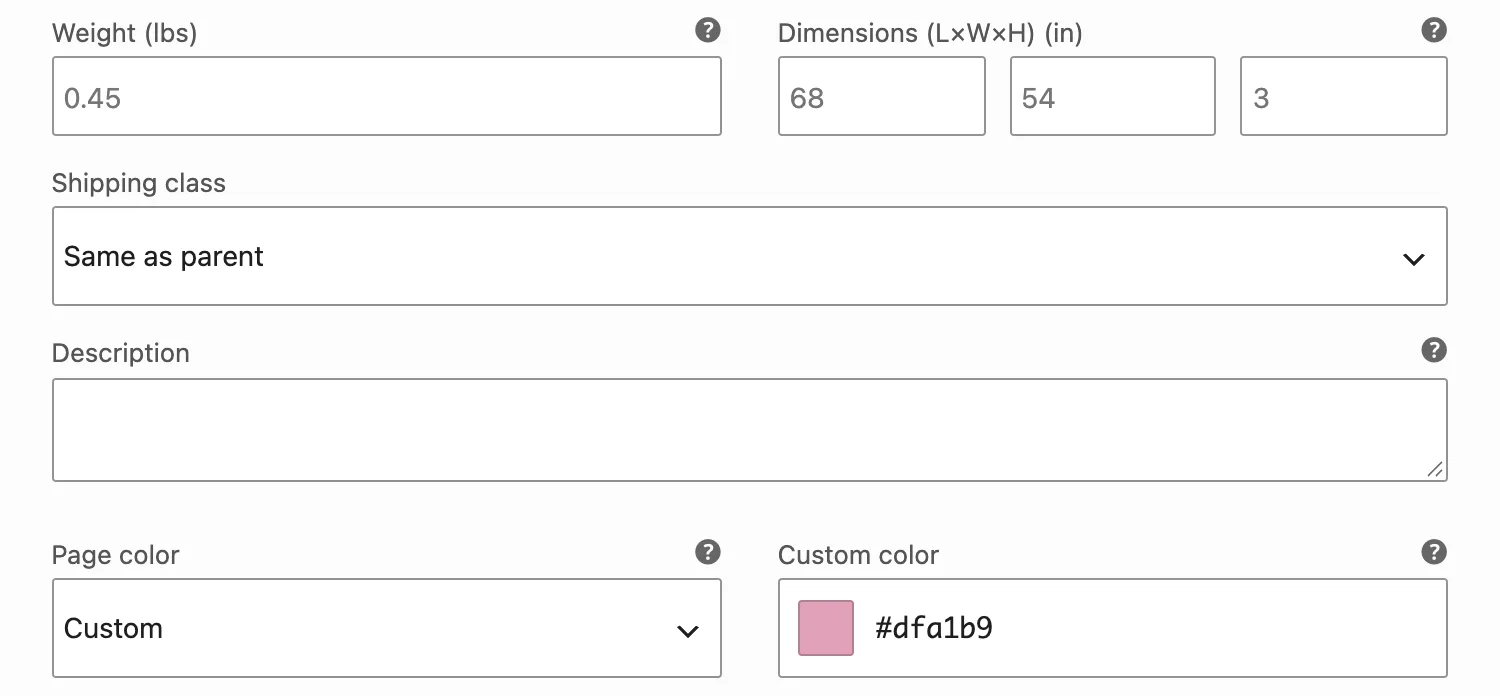
The Page color field on a variation, below the description. The Custom color field shows only when Custom is picked.
The choices
Page color starts on Automatic, so most variations need no setup.
| Choice | What it does |
|---|---|
| Automatic Default | Reads the color from the variation photo. A swatch color on the color attribute comes first. |
| Custom | Uses the color you pick, or a hex code you type, exactly as you set it. |
| Off | Keeps your theme's colors when this variation is picked. |
See it on a product
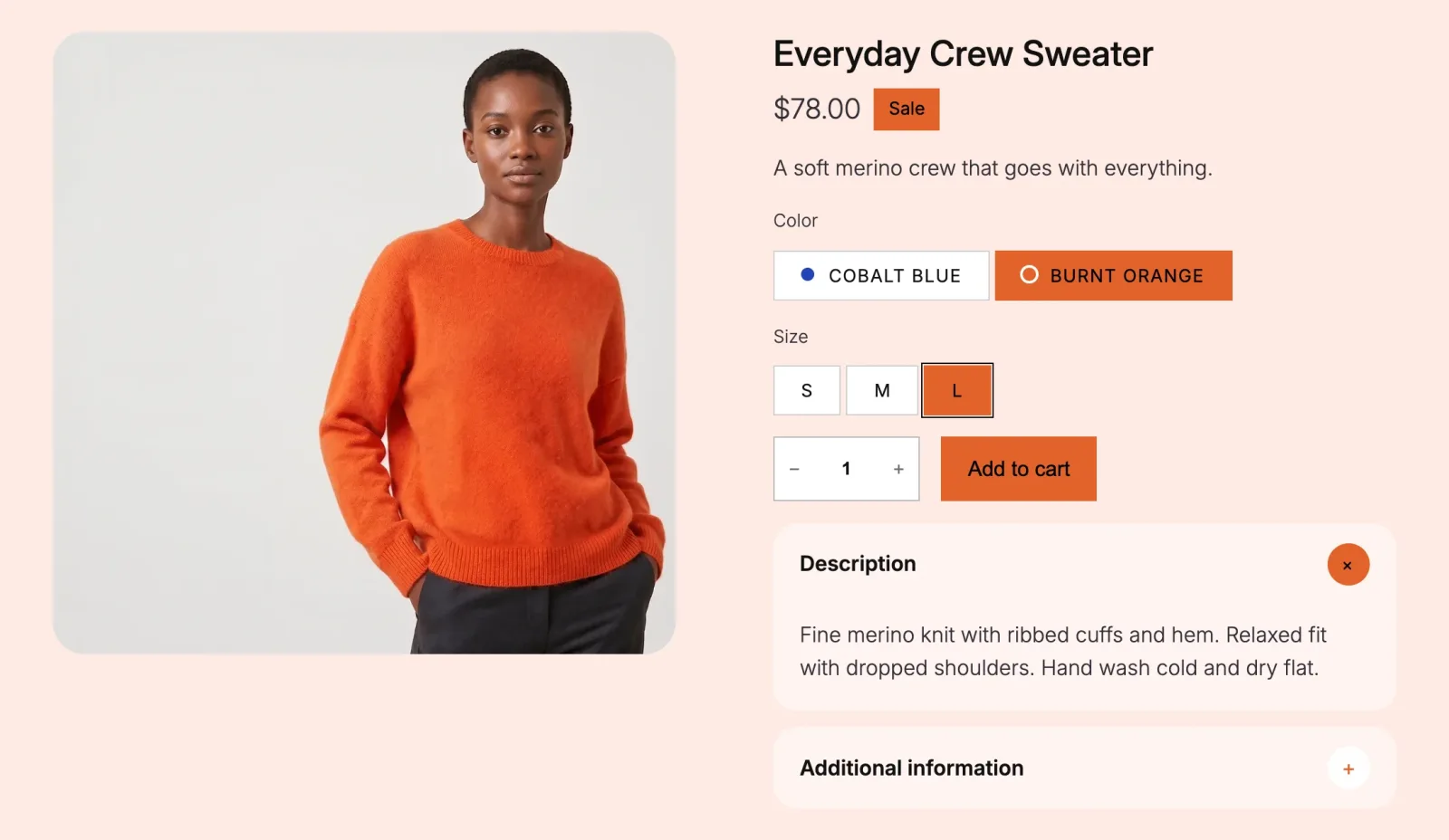
The same sweater with and without Purplish, Burnt orange picked.
Good to know
Before you change it
- Purplish reads the photo in the background after the variation has a photo and is saved. Until then the field says the color is not read yet.
- Purplish finds the product in the photo, not the wall behind it. A busy photo can point it at the wrong area; set Custom when that happens.
- Text on the color is black or white, whichever reads better.
- The field is the same on classic themes. Pick which parts take the color under WooCommerce, Settings, Products, Purplish.