
Where to find it
Open the template with your product cards, like Appearance, Editor, Templates, Product Catalog. Add a Color Dots block inside the Product Template of a Product Collection block, from the Purplish group of the block inserter. Select it, then pick a Look, How many to show and Show a single color in the Colors panel of the block sidebar.
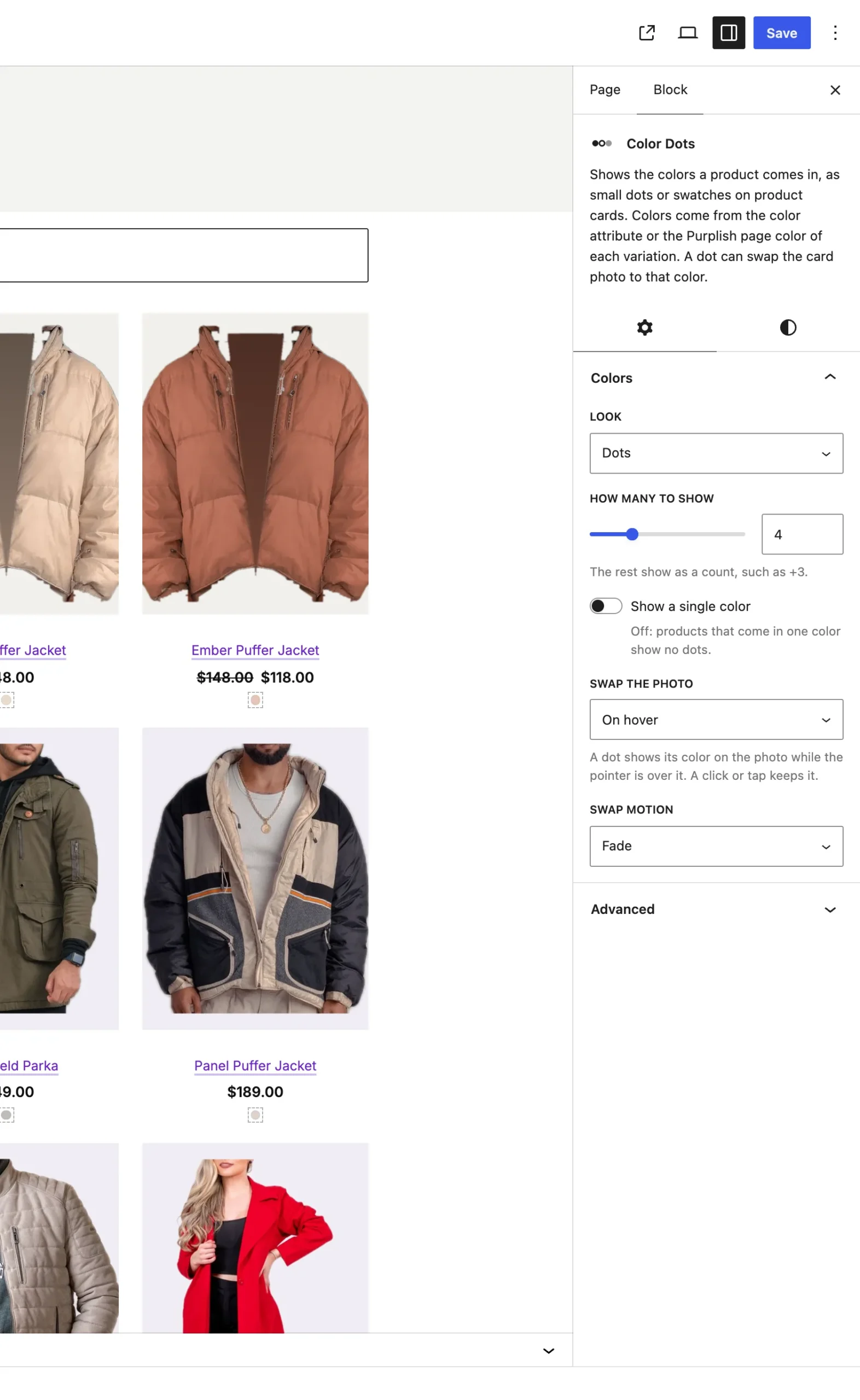
The Colors panel on the Color Dots block.
The choices
Look starts on Dots.
| Choice | What it does |
|---|---|
| Dots Default | Small dots in a single line. |
| Swatches | Bigger swatches that wrap onto more lines, with a ring on hover. |
How many to show:
| Choice | What it does |
|---|---|
| 1 to 12 | The rest show as a count, such as +3. It starts on 4. |
Show a single color:
| Choice | What it does |
|---|---|
| Off Default | Products that come in one color show no dots. |
| On | They show their one dot. |
Good to know
Where the colors come from
- On a variable product, Purplish reads the color attribute: the one set to Color swatches, or else one named Color. Each color gets a dot, in the order of your variations.
- A dot takes the swatch color of its term, or else the Page color of a variation in that color.
- A variable product with no color attribute gets one dot for each page color. A simple product gets its own page color.
- Hidden variations get no dot, and neither do sold-out colors when your store hides out-of-stock products.
- The block's font size sets the dot size.