
Where to find it
Add a Changing Room block from the Purplish group of the block inserter, on any page, post or template. Select it, then add a photo for each pair in the Outfit photos panel of the block sidebar.
The grid shows once at least one top and one bottom Piece has a product. Pick those first.
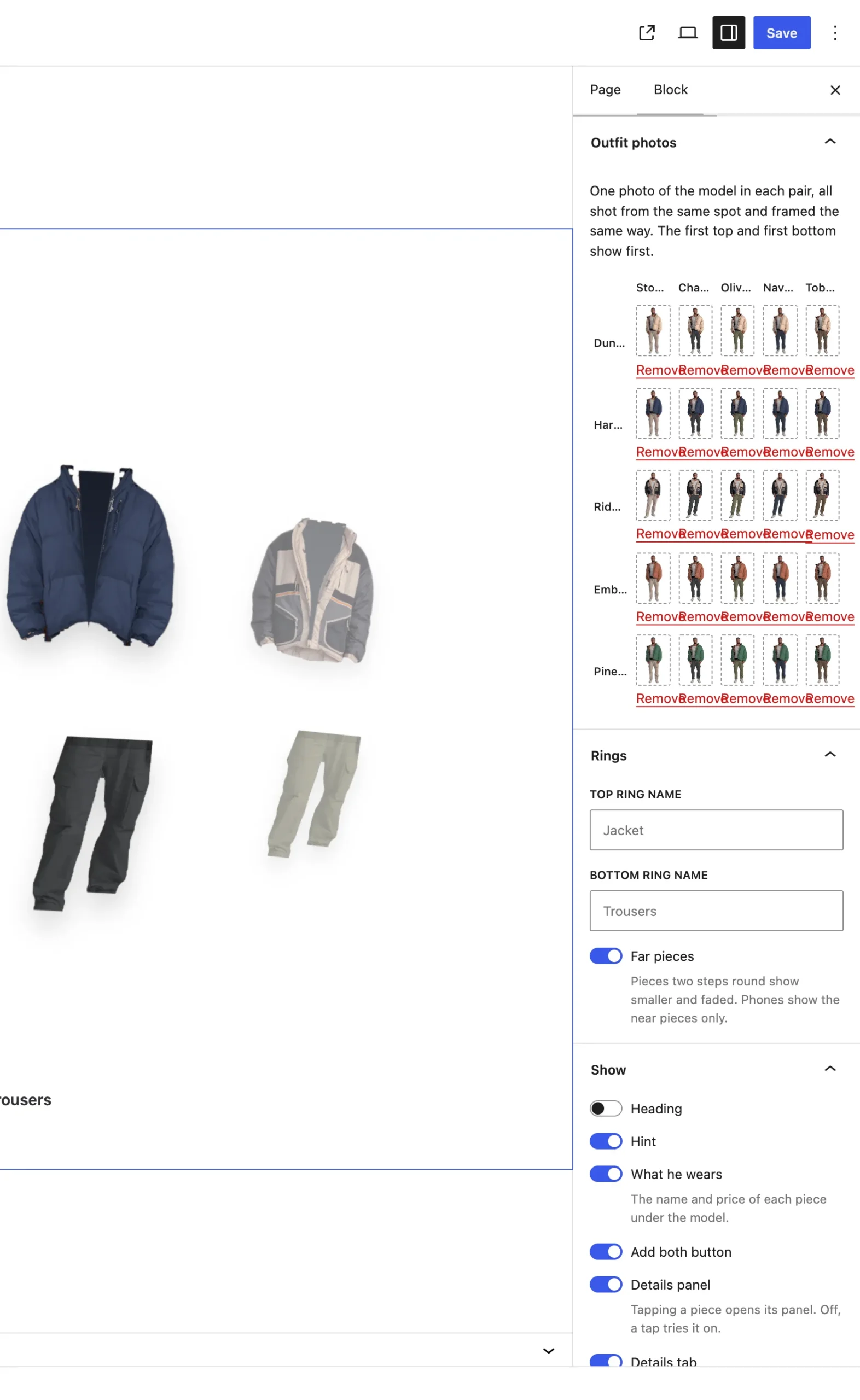
Tops are the rows and bottoms the columns. Each cell takes one photo.
What it does
The grid has a row for each top and a column for each bottom. Click a cell to pick the photo of the model wearing that pair.
| Pair | What shoppers see |
|---|---|
| First top and first bottom | Their photo shows when the page loads, even before the script runs. |
| Any other pair | Its photo shows when a shopper puts that top and bottom together. |
| A pair with no photo | The last photo stays on screen with No photo of this pair yet. |
Good to know
Before you add photos
- Shoot every photo from the same spot and frame them the same way, so the model stays put as the outfit changes.
- Three tops and three bottoms need nine photos, one for each pair.
- Purplish writes each photo's alt text from the two product names.
- Each outfit a shopper puts together goes into the address as ?outfit=, so a shared link opens on the same outfit.