
Where to find it
Edit the Cart page in Pages, or open Appearance, Editor, Templates, Page: Cart. Select the Cart block, then turn on Bigger photos in the Purplish panel. You'll see it in the editor as you pick.
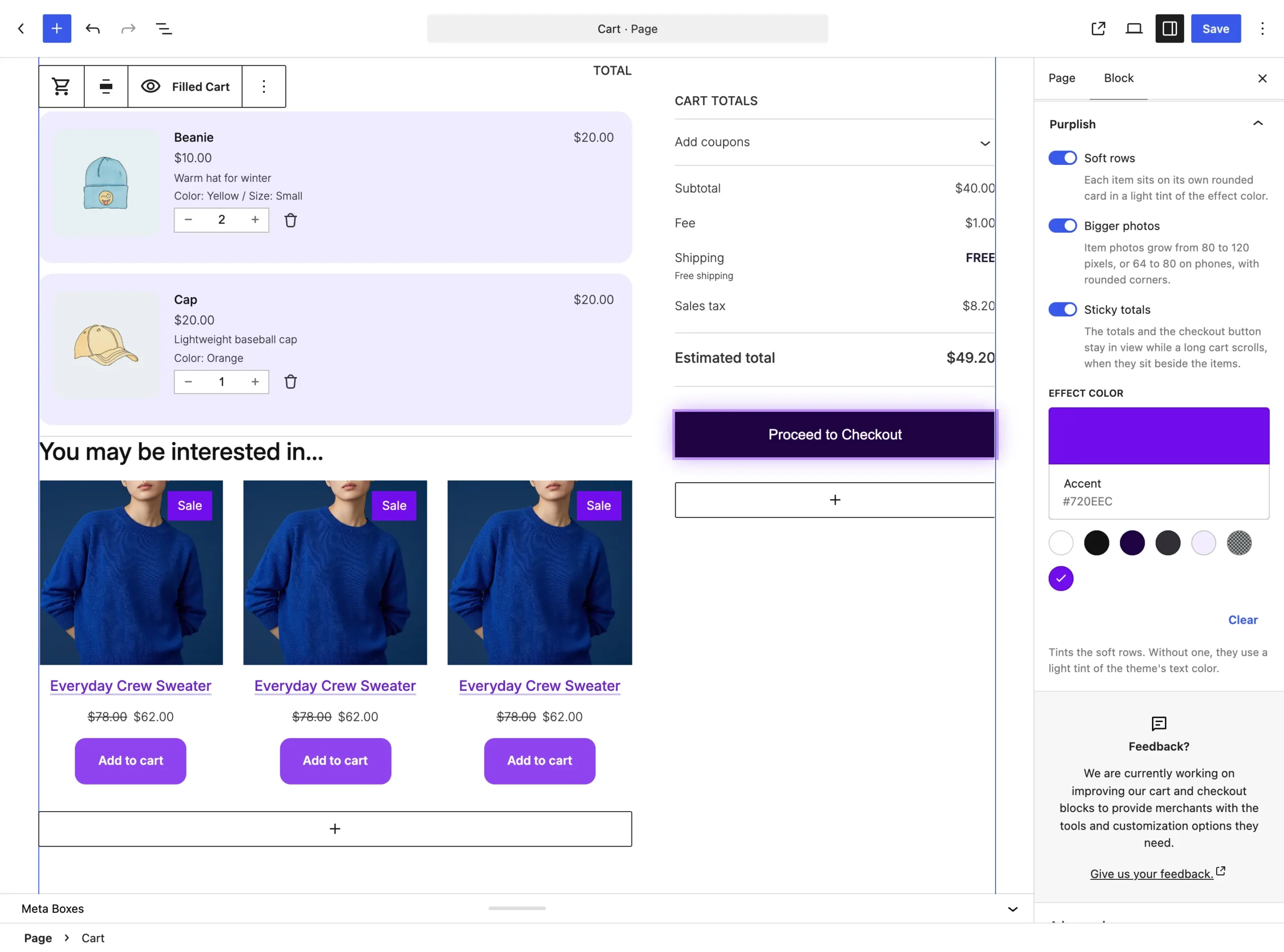
Bigger photos sits under Soft rows.
What it does
A switch, off by default.
| Choice | What it does |
|---|---|
| Off Default | Leaves the block as it is. |
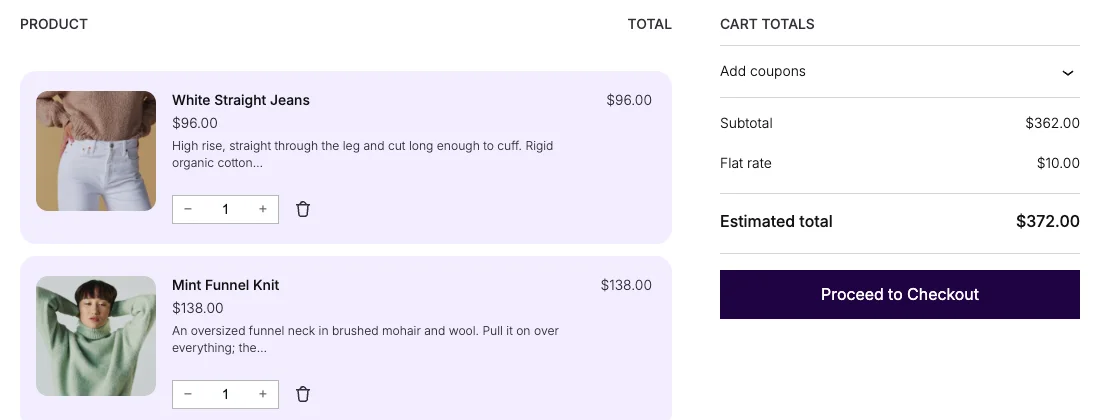
| On | Item photos grow from 80 to 120 pixels, or from 64 to 80 on phones, with rounded corners. |
See it on the store
The cart page with Soft rows and Bigger photos on.
Good to know
Before you turn it on
- Works with or without Soft rows.