
Where to find it
Open the template or page with your Product Collection block, like Appearance, Editor, Templates, Product Catalog. Select the Product Collection block, then turn on Details on the photo in the Purplish panel. You'll see it in the editor as you pick.
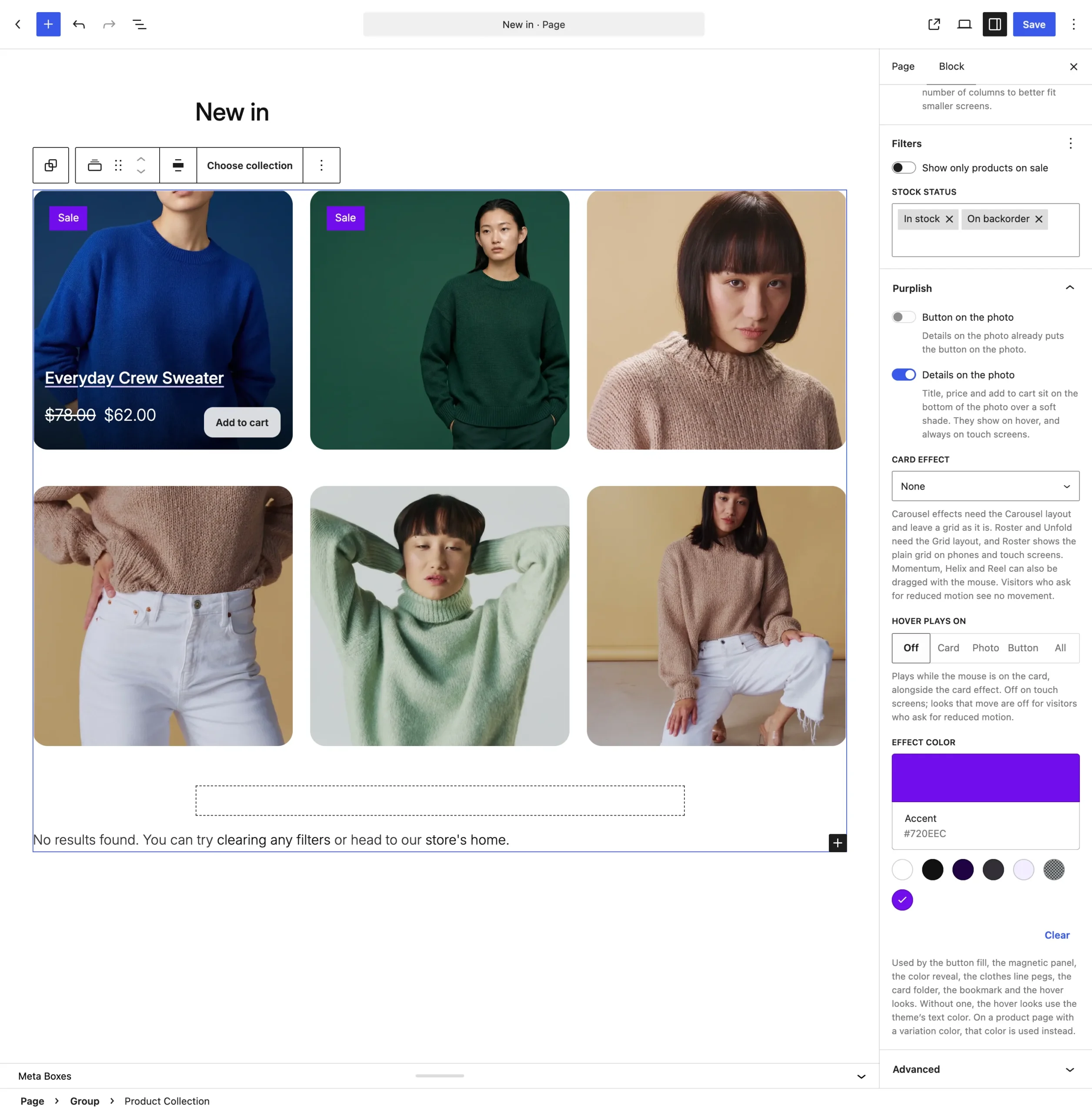
Details on the photo sits under Button on the photo. Hover a card on the canvas to see it.
What it does
A switch, off by default.
| Choice | What it does |
|---|---|
| Off Default | Leaves the block as it is. |
| On | The title, price and add to cart sit on the bottom of the photo over a soft shade, with the button as a frosted pill beside the price. |
Good to know
Before you turn it on
- With a mouse, the details show on hover or focus. Touch screens always see them.
- On a narrow card, the button takes its own row and long names stop at two lines.
- It already puts the button on the photo, so Button on the photo is greyed out while it's on.
- With the Roster card effect, the details stay where they are, since Roster shows the names as its own list.