
Where to find it
Open the template with your product cards, like Appearance, Editor, Templates, Product Catalog. Add a Shelf Tag block inside the Product Template of a Product Collection block, from the Purplish group of the block inserter. Select it, then pick a Look, a Corner and Shine on hover in the Look panel of the block sidebar.
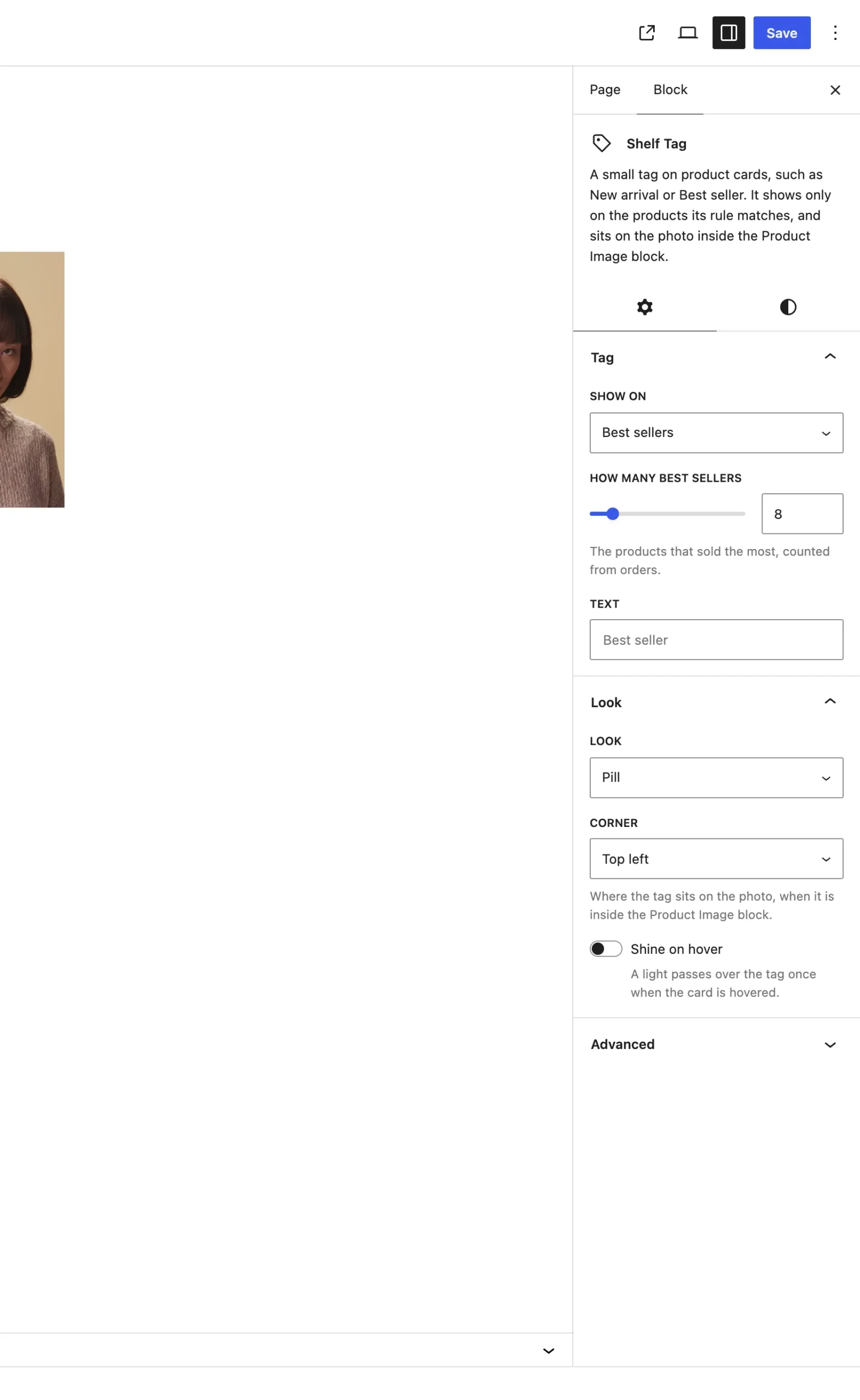
The Look panel on the Shelf Tag block.
The choices
Look starts on Chip.
| Choice | What it does |
|---|---|
| Chip Default | A small white tag in capitals with wide letters. |
| Pill | A dark round tag with white text. |
| Glass | A frosted round tag the photo shows through. |
Corner:
| Choice | What it does |
|---|---|
| Top right Default | The top right of the photo. |
| Top left | The top left. |
| Bottom left | The bottom left. |
| Bottom right | The bottom right. |
Shine on hover:
| Choice | What it does |
|---|---|
| Off Default | The tag stays still. |
| On | A light passes over the tag once when the card is hovered. |
Good to know
- Corner only places the tag when it's inside the Product Image block. Outside it, the tag sits in the card like a short label.
- On right-to-left sites, left and right swap.
- Colors, font size, padding and border in the block's Styles win over the look.
- Shine needs a mouse, so touch screens and visitors who ask for reduced motion see no shine.