
Where to find it
Open the template with your products, like Appearance, Editor, Templates, Product Catalog. Select the Product Filters block, then pick a Layout in the Purplish panel of the block sidebar. Move the block above the products for Bar.
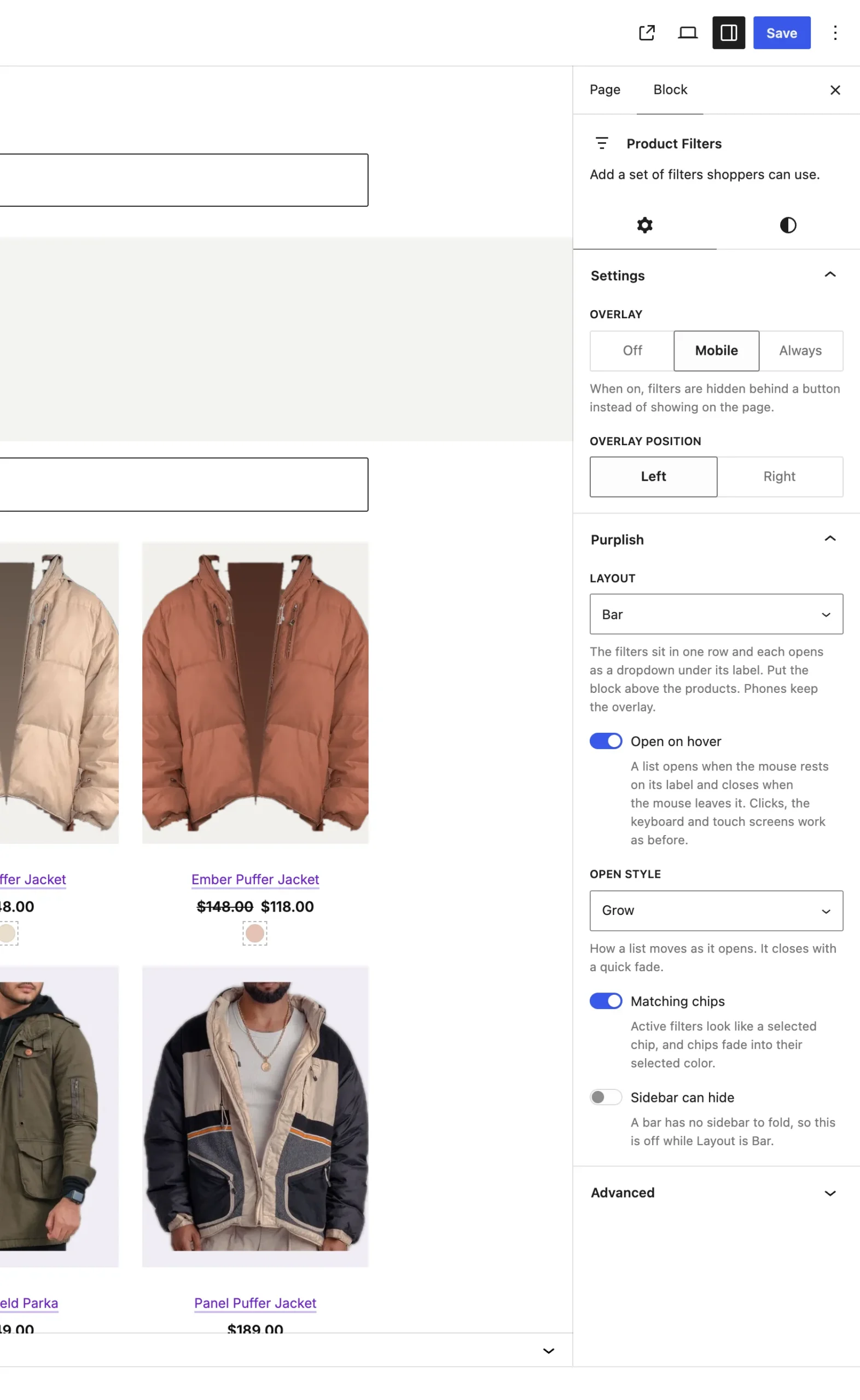
Open on hover and Open style show once Layout is Bar.
The choices
It starts on Column.
| Choice | What it does |
|---|---|
| Column Default | The filters stack in a column, for a sidebar. |
| Bar | The filters sit in one row, and each opens as a dropdown under its label. One list opens at a time. |
Open on hover:
| Choice | What it does |
|---|---|
| Off Default | A click on the label opens the list. |
| On | A list opens when the mouse rests on its label, and closes when the mouse leaves. Clicks, the keyboard and touch screens work as before. |
Open style:
| Choice | What it does |
|---|---|
| Slide Default | The list drops a little from under the label. |
| Grow | The list unrolls from its top edge. |
| Fold | The list swings down like a flap. |
| Cascade | The options slide in one after another. |
Good to know
Before you pick Bar
- Set the block's Overlay to Mobile or Off. With Overlay on Always, the filters never sit in a row.
- Screens 782px wide or less get WooCommerce's overlay, with Overlay on Mobile.
- Escape closes the open list and puts focus back on its label.
- The editor shows the filters side by side with every list open, so you can edit them.
- Lists close with a quick fade. Visitors who ask their device for reduced motion see a fade only.