
Where to find it
Open a product template, like Appearance, Editor, Templates, Single Product. Select the Product Gallery block, then turn on Photo wash in the Purplish panel.
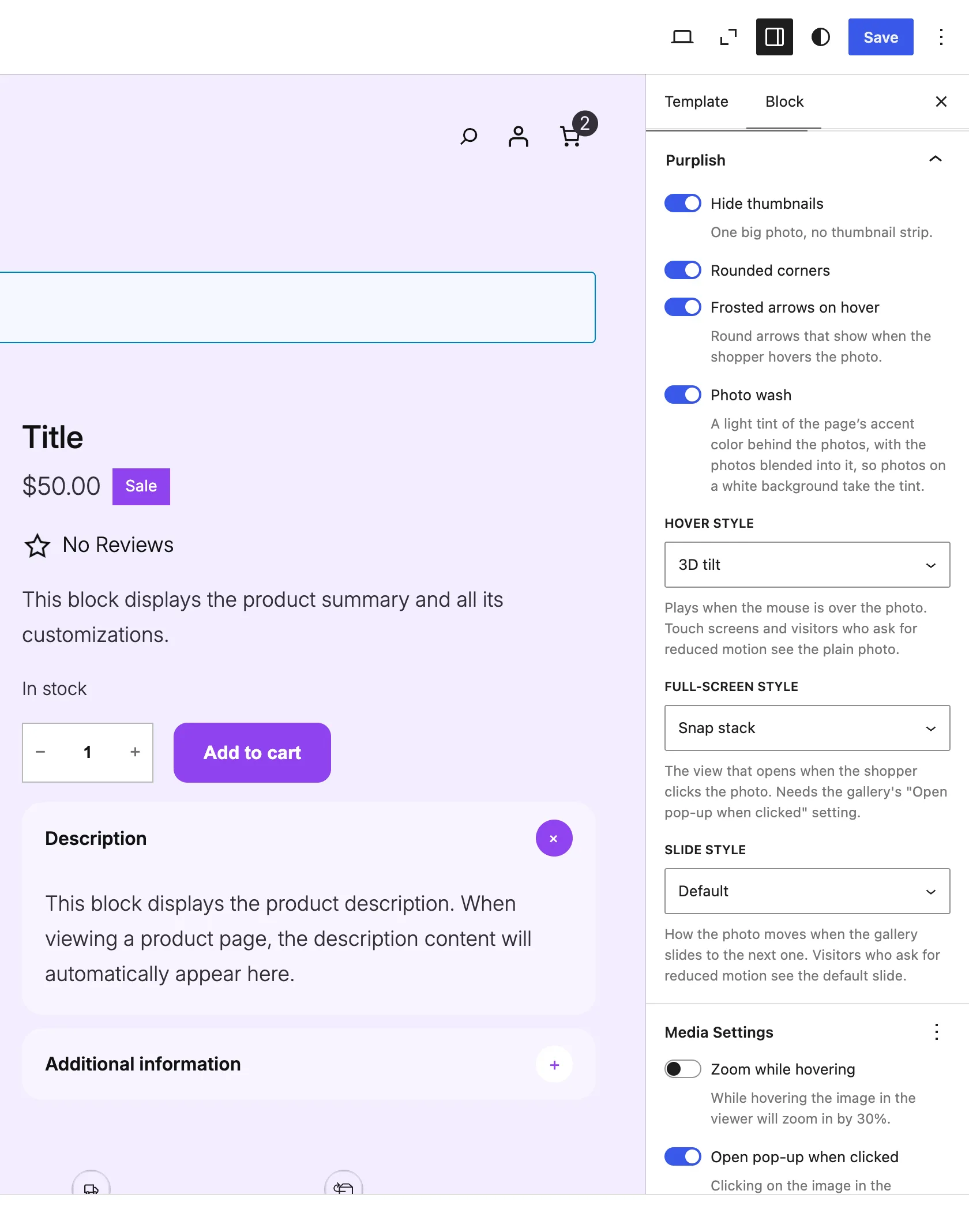
Photo wash sits under Frosted arrows on hover.
What it does
A switch, off by default.
| Choice | What it does |
|---|---|
| Off Default | Leaves the block as it is. |
| On | A light tint of the page color sits behind the large photo and the thumbnails, and the photos blend into it. A photo on a white background takes the tint. |
Good to know
- The tint follows the variation a shopper picks, like the rest of the page. Without a page color, it's a light tint of the text color.
- Photos with their own colored background keep it. The wash shows where the photo is white.
- Product cards have their own Photo wash on the Product Collection block.
- Classic themes don't have this one.
- A block theme can set one wash color in theme.json, in place of the tint, so it stays the same for every variation. See Corners, shadow and colors.