
Where to find it
Add a Showfloor block from the Purplish group of the block inserter, on any page, post or template. Select it, then pick the buttons in the Shopping panel of the block sidebar.
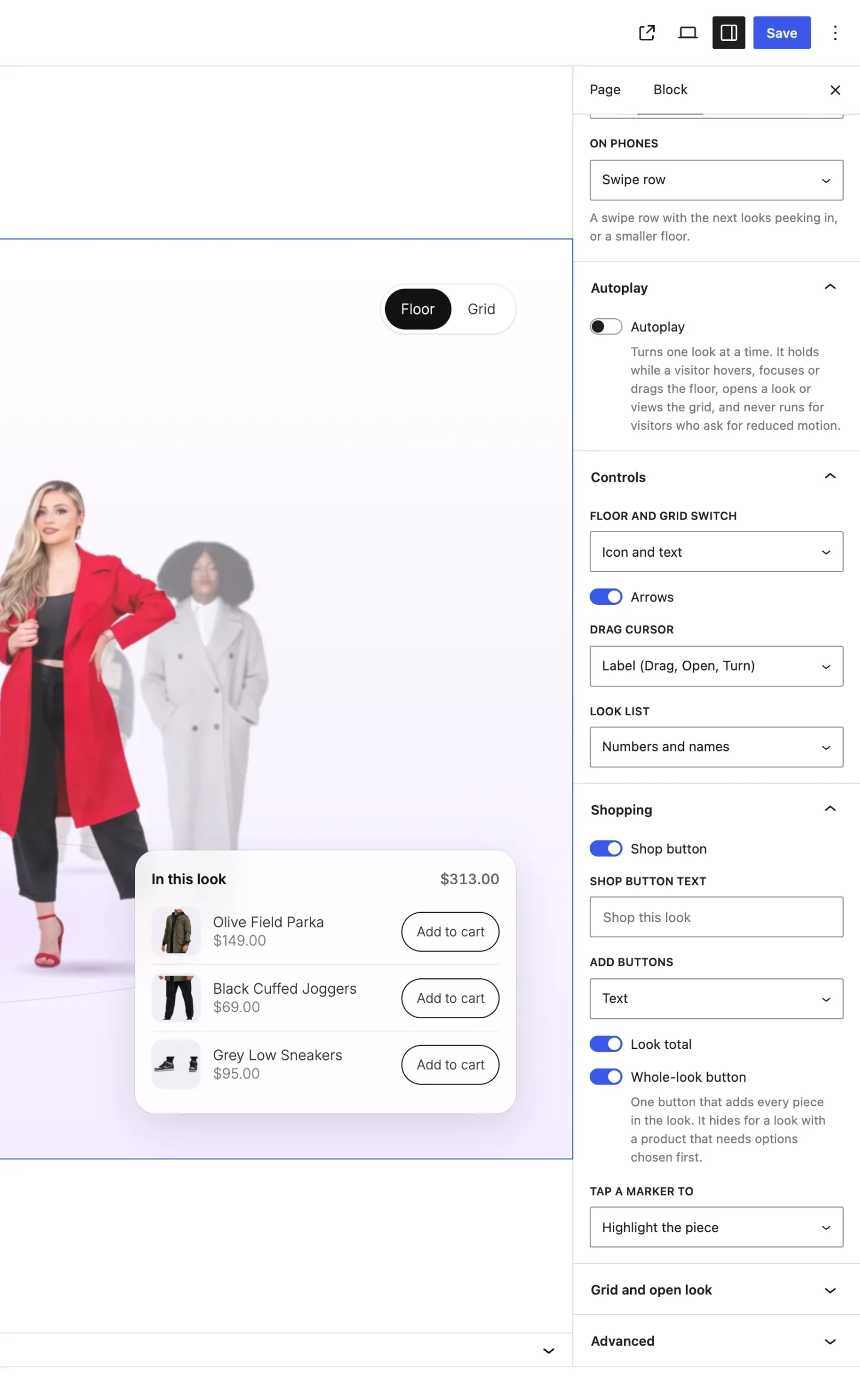
The Shopping panel on the Showfloor block.
The settings
| Setting | What it does |
|---|---|
| Shop button | On by default. Shop this look opens the front look. Shop button text sets its words. |
| Add buttons | Text shows Add to cart on each piece. Icon is a round plus that turns into a tick once added. It starts on Text. |
| Look total | On by default. Adds up the prices of the pieces in the look. |
| Whole-look button | On by default. One button that adds every piece in the look at once. |
| Tap a marker to | Highlight the piece lights up its row. Add it to the cart adds that piece. It starts on Highlight the piece. |
Good to know
- Simple products add from the block. Variable products, and anything sold out, link to their product page.
- The whole-look button needs two pieces or more, all of them simple products in stock. Otherwise it hides for that look.
- The look total uses the lowest price of a variable product, so it can read low.
- The Mini-Cart count updates after each add, and it works on cached pages.