
Where to find it
Edit the Checkout page in Pages, or open Appearance, Editor, Templates, Page: Checkout. Select the Checkout block, then turn on Soft summary in the Purplish panel. You'll see it in the editor as you pick.
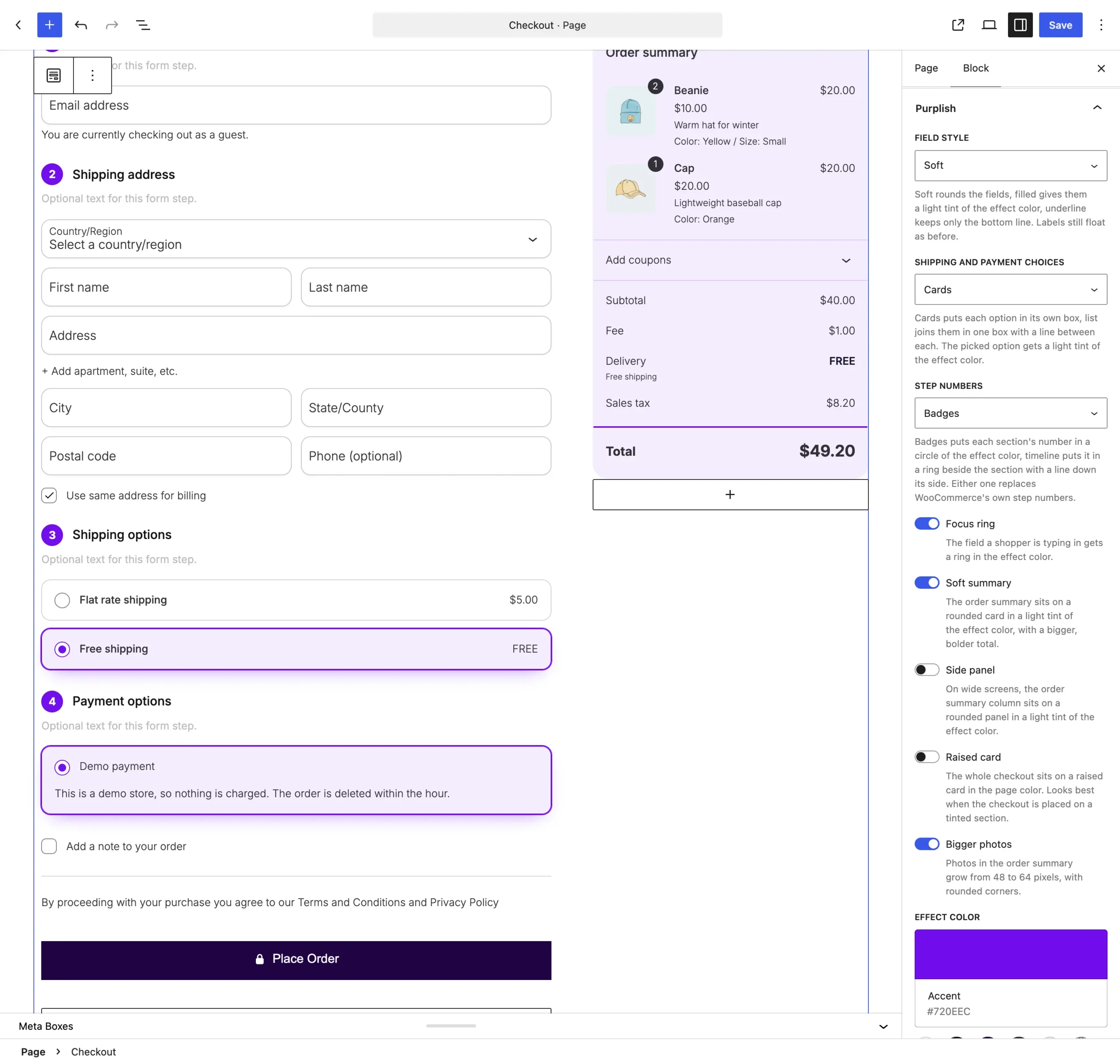
Soft summary sits under Focus ring.
What it does
A switch, off by default.
| Choice | What it does |
|---|---|
| Off Default | Leaves the block as it is. |
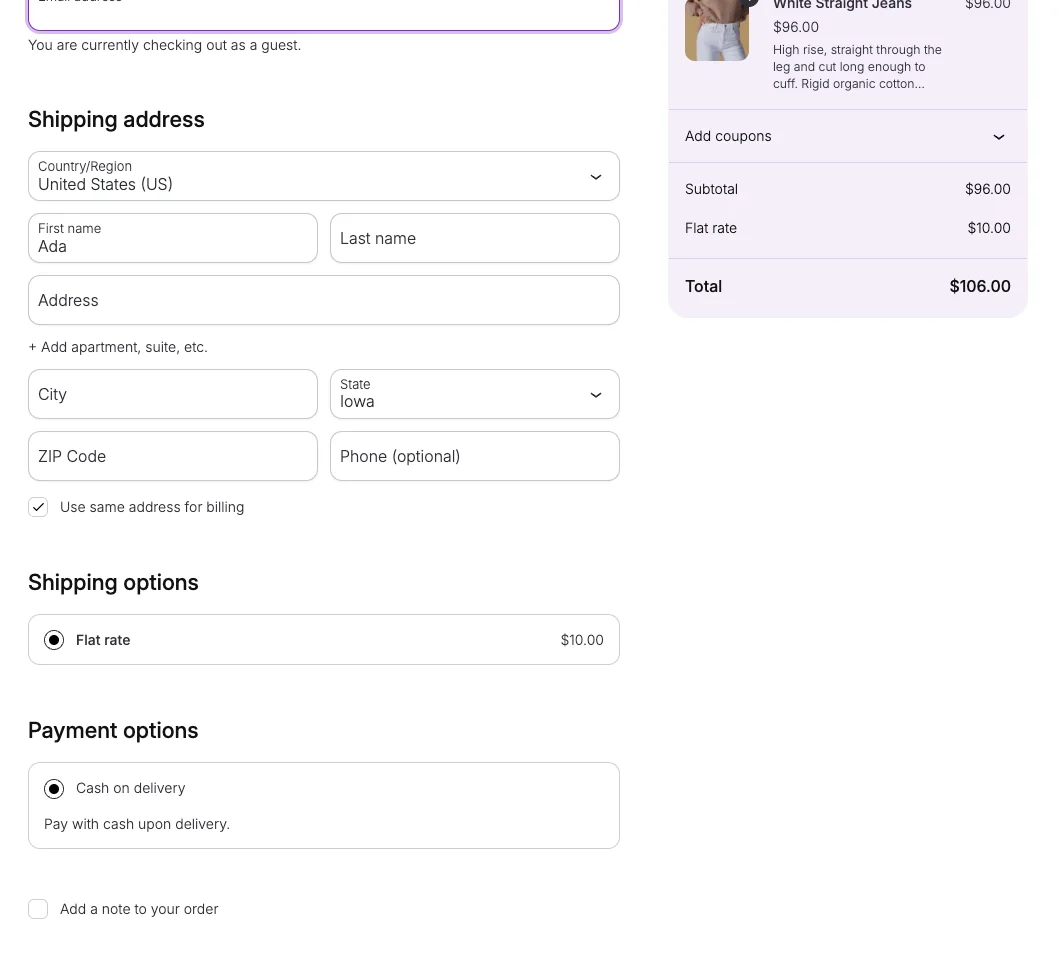
| On | The order summary sits on a rounded card in a light tint of the effect color, with a bigger, bolder total. |
See it on the store
Soft summary with Soft fields and Bigger photos on the demo store checkout.
Good to know
Before you turn it on
- The total line gets a rule in the Effect color above it.
- On a phone, the summary bar at the top of the checkout gets the tint.
- The tint is see-through, so it works on dark themes too.
- With Side panel on, the summary turns into a card in the page color on the tinted panel.