
Where to find it
Add a Changing Room block from the Purplish group of the block inserter, on any page, post or template. Select it, then turn moves on or off in the Moves panel of the block sidebar.
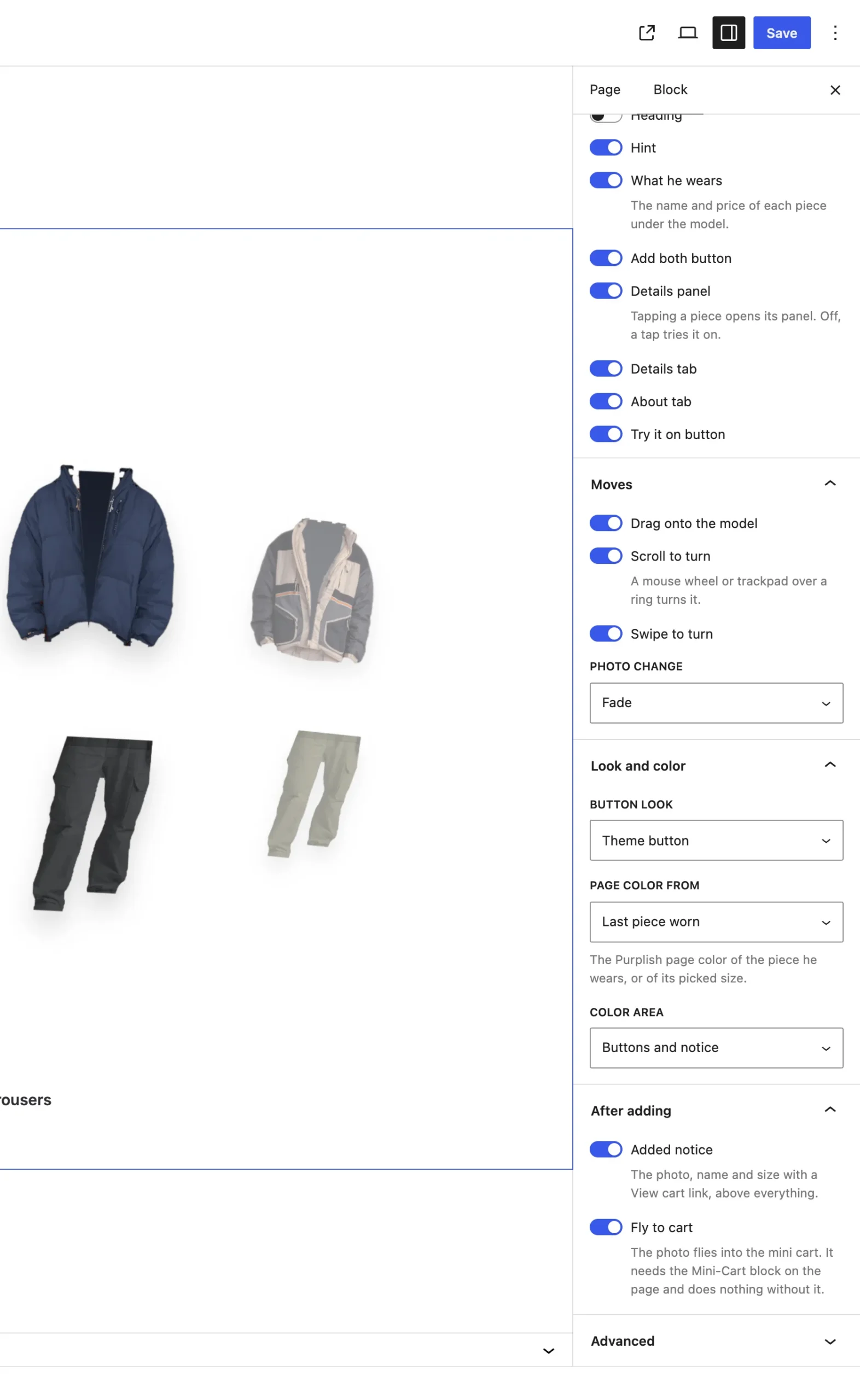
The Moves panel on the Changing Room block.
The settings
| Setting | What it does |
|---|---|
| Drag onto the model | On by default. Shoppers press a piece and drop it on the model to try it on. |
| Scroll to turn | On by default. A mouse wheel or trackpad over a ring turns it. |
| Swipe to turn | On by default. A sideways swipe over the top or bottom half turns that ring. |
| Photo change | How the outfit photo changes when a piece goes on. It starts on Fade. |
Photo change:
| Choice | What it does |
|---|---|
| Fade Default | The new photo fades in. |
| Reveal from the top | The new photo opens from the top down. |
| Instant | The photo swaps at once, and the piece doesn't fly onto the model. |
Good to know
- Arrow keys turn a ring too: focus a piece and press Left or Right.
- On touch screens, a mostly up and down move scrolls the page instead of dragging.
- A swipe turns two pieces at most, even a fast one.
- Visitors who ask their device for reduced motion see the rings jump and the photo change at once.